How to Hide or Show File Names in Vista
 Information
This will show you how to hide or show all file and subfolder icon names (text) in only the currently opened folder in a Windows Explorer window. By default, they are set to show file names.
This can be handy if the folder contains nothing but images or videos, you may only want to have thumbnails showing without text.
This can be handy if the folder contains nothing but images or videos, you may only want to have thumbnails showing without text.
 Warning
You can only set to hide or show icon file names from within the Pictures and Video folder template first. After you hide or show the file names in this template, you can then change the folder template back to what ever one you want and the icon file names will remain the same way you set them in the Pictures and Video folder template.
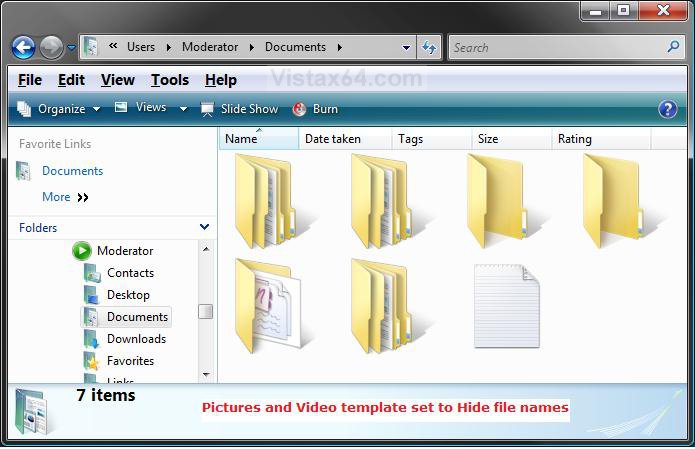
EXAMPLE A: File and Folder Names set to Hide
EXAMPLE B: File and Folder Names set to Show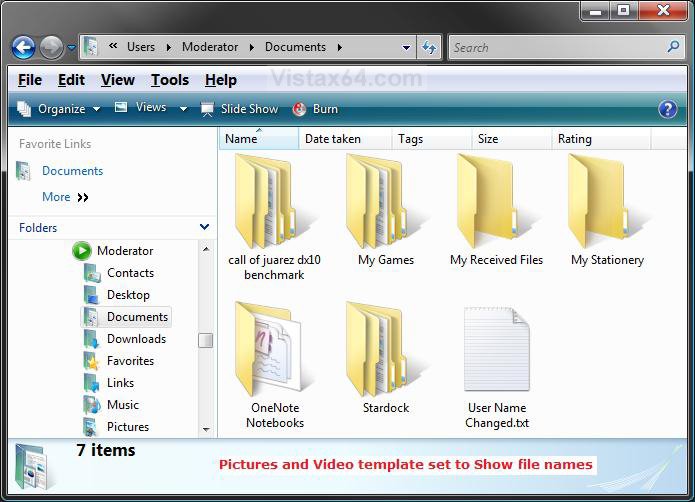
 OPTION ONE
NOTE: Even with the file names set to hide, you can still see the file names in the Details pane when you just highlight a file or do OPTION TWO below.
1. Open the folder in Windows Explorer that you want to hide all file names in. (See Example B screenshot above)
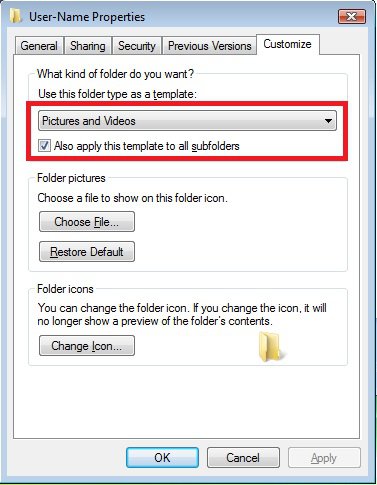
2. If not already, temporarily change the folder template to Pictures and Video first.
NOTE: Make note of what your current folder template is for this folder. so that you can change it back to in step 5.
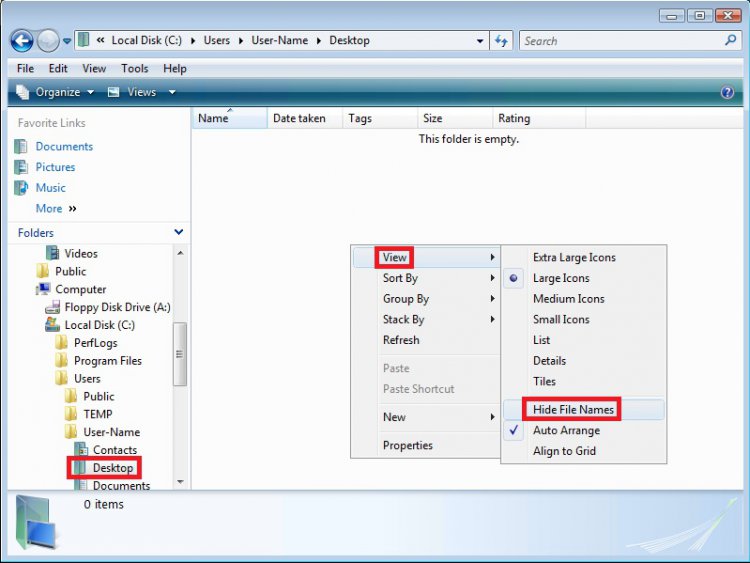
3. Right click on a empty area in the folder window and click on View, then click on Hide File Names to check it. (See left screenshot below)
NOTE: If Hide File Names is grayed out, then make sure that you have either Extra Large Icons, Large Icons, Medium Icons, or Small Icons selected (dotted) instead of List, Details, or Tiles first. (See right screenshot below)
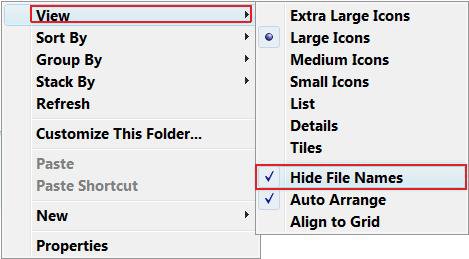
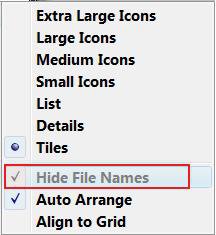
4. The file and folder names should now be gone. (See Example A screenshot above)
5. If you changed the folder template in step 2, then change it back to the folder template that you want or had before.
6. Your done.
OPTION TWO NOTE: This is if you have the file names set to hide in OPTION ONE above. It will not matter what folder template you are using for the opened folder window for this option.
1. Open the folder in Windows Explorer that you want to temporarily show all file names in. (See Example A screenshot above)
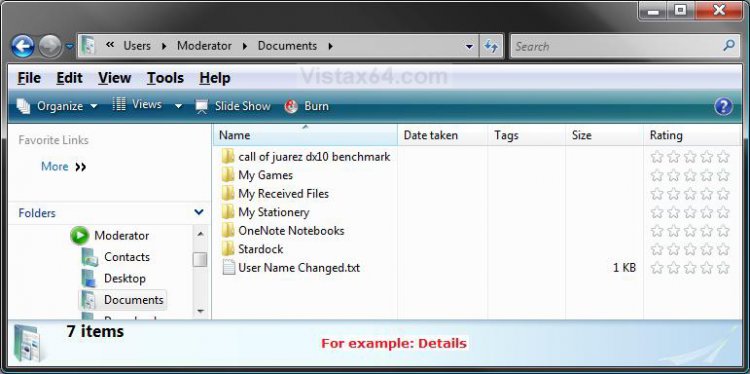
2. Right click on a empty area in the window and click on View, then click on either List, Details, or Tiles to dot one of them. (See screenshot below)
NOTE: Hide File Names will be grayed out until you select (dot) either Extra Large Icons, Large Icons, Medium Icons, or Small Icons again.
3. Your folder window will now look similar to this. (See screenshot below)
NOTE: When you select (dot) either Extra Large Icons, Large Icons, Medium Icons, or Small Icons again, then the file names will be hidden again.
OPTION THREE NOTE: If you had the file names set to hide in OPTION ONE, then this will show you how to have them show all the time again.
1. Open the folder in Windows Explorer that you want to hide all file names in. (See Example A screenshot above)
2. If not already, temporarily change the folder template to Pictures and Video first.
NOTE: Make note of what your current folder template is for this folder. so that you can change it back to in step 5.
3. Right click on a empty area in the window and click on View, then click on Hide File Names to uncheck it. (See left screenshot below)
NOTE: If Hide File Names is grayed out, then make sure that you have either Extra Large Icons, Large Icons, Medium Icons, or Small Icons dotted instead of List, Details, or Tiles first. (See right screenshot below)
4. The file and folder names should now be back. (See Example B screenshot above)
5. If you changed the folder template in step 2, then change it back to the folder template that you want or had before.
6. Your done.
That's it,Shawn
Related Tutorials
- How to "Hide file names" of Files in Picture and Video Folders in Windows 7 and Windows 8
- How to Change a Windows Explorer Folder Type Template in Vista
- How to Change the Windows Explorer Columns and Sort Order in Vista
- How to Hide or Show Desktop Icon Text in Vista
- How to Reset Windows Explorer Folder View Settings to Make Vista Remember
- How to Remove or Change the Shortcut Arrow and Name in Vista
- How to Remove the Shortcut Prefix On a Shortcut Name in Vista
- How to Hide or Show Hidden Files and Folders in Vista
- How to Hide a Folder or Shortcut Icon in Vista
- How to Disable Auto Arrange in Vista Windows Explorer to have Free Sorting
Attachments

Last edited by a moderator: