How to Add or Remove "Copy as Path" from the Vista and Windows 7 Context Menu
 Information
This will show you how to add or remove Copy as Path from the context menu for all users on the computer. By default, Copy as Path is added to the context menu.
 Note
NoteTo see what and how to use Copy as Path, see: How to Copy the Full Path of a File or Folder in Vista and Windows 7
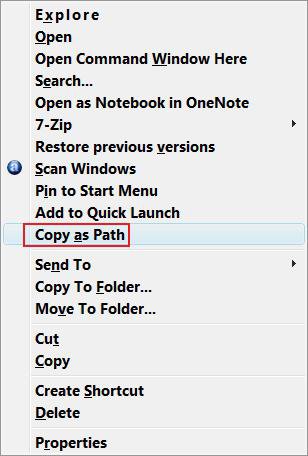
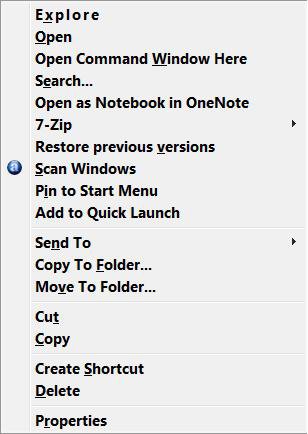
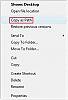
EXAMPLE: "Copy as Path" added and removed from the Context Menu
NOTE: By default, you must press and hold Shift and right click on the file or folder to see Copy as Path.
 METHOD ONE
1. To Add "Copy as Path" to Context Menu
A) Click on the download button below to download the file below.
Add_Copy_as_Path_Menu.reg

B) Go to step 3.
2. To Remove "Copy as Path" to Context Menu
A) Click on the download button below to download the file below.
Remove_Copy_as_Path_Menu.reg
3. Click on Save, and save the .reg file to the Desktop.
4. Right click on the downloaded .reg file and click on Merge.
5. Click on Run, Continue (UAC-Vista) or Yes (UAC-Windows 7), Yes, and then OK when prompted.
6. When done, you can delete the downloaded .reg file if you like.
METHOD TWO 1. Open the Start Menu, then type regedit in the search boxand press Enter.
2. If prompter by UAC, then click on Continue (Vista) or Yes (Windows 7).
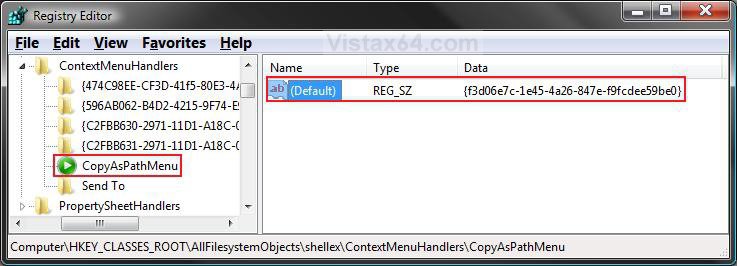
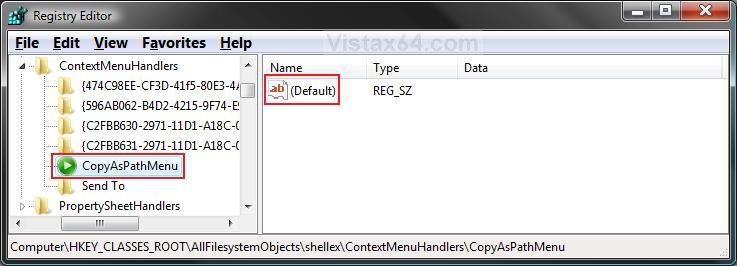
3. In regedit, go to: (See screenshot below)
Code:
HKEY_CLASSES_ROOT\AllFilesystemObjects\shellex\ContextMenuHandlers\CopyAsPathMenu
4. To Remove Copy as Path to Context Menu
A) In the right pane, right click on (Default) and click on Modify. (See screenshot above)
B) Clear and leave the field empty and click OK. (See screenshot below)
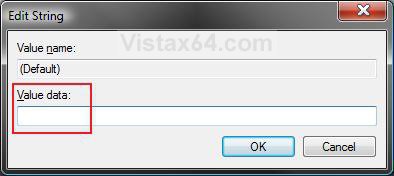
C) Your registry will now look like this. (See screenshot below)
D) Go to step 6.
5. To Add Copy as Path to Context Menu
A) In the right pane, right click on (Default) and click on Modify. (See screenshot above)
B) Copy and Past the value below and click OK. (See screenshot below)
{f3d06e7c-1e45-4a26-847e-f9fcdee59be0}
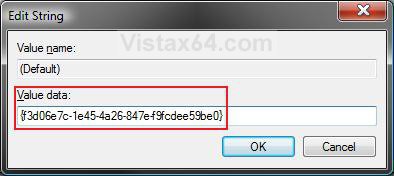
C) Your registry will now look like this. (See screenshot below step 3)
6. Close regedit.
That's it,Shawn
Related Tutorials
- How to Expand the Context (Shortcuts) Menu in Vista
- How to Customize the Context Menu for the Start Menu in Vista
- How to Customize the Send To Context Menu in Vista
- How to Customize the Recycle Bin Context Menu in Vista
- How to Add Encrypt and Decrypt to the Context Menu in Vista
- How to Add and Remove a New Menu Item in Vista
- How to Add Take Ownership to the Context Menu in Vista
- How to Copy the Full Path of a File or Folder in Vista
- How to Add Flip 3D to the Context Menu in Vista
- How to Restore or Remove New from the Context Menu in Vista
- How to Enable or Disable the Context Menu in Vista
- How to Remove or Show Drives in the Vista and Windows 7 "Send To" Context Menu
- How to Add View and Print File Directory to the Context Menu in Vista
- How to Add COPY TO FOLDER and MOVE TO FOLDER to the Context Menu in Vista
- How to Add or Remove Send To from the Vista Context Menu
- How to Add or Remove Turn Aero On or Off from the Vista Context Menu
- How to Add System Properties to Computer Context Menu in Vista
- How to Restore or Remove "Restore Previous Versions" from the Vista Context Menu
- How to Show or Hide Folder Full Path in the Vista Taskbar Buttons
- How to Add Empty Folder and Subfolders to the Vista Context Menu
- How to Add "Copy Content to Clipboard" to Context Menu in Vista, Windows 7, and Windows 8
Attachments
Last edited: