Vista Forums
Vista Forums Home Join Vista Forums Donate Vista Tutorials Tags

Welcome to Vista Forums we are your forum to discuss Windows Vista x64 and x86 systems. Whether you need help or just want to post an idea you have on Vista, this is the forum for you.
Register at Vista forums...the world biggest Windows Vista resource Join Vista Forums

Go Back   Vista Forums > Vista Forums > Tutorials

Boot Advanced Options - Number of Processors

Poll: Did this Tutorial help and work for you?
Poll Options
Did this Tutorial help and work for you?

Comment
 
Tutorial Tools Display Modes
<!-- google_ad_section_start -->Boot Advanced Options - Number of Processors<!-- google_ad_section_end -->
Boot Advanced Options - Number of Processors
How to Change the Number of Processors Used at Boot Up in Vista
Published by Brink
05-13-2008

How to Change the Number of Processors Used at Boot Up in Vista

INFO: If you have a multiple core CPU (Ex: Intel Core Duo or Quad CPU) or multiple CPUs, then this will show you how to change the Number of Processors that will be used during boot up to help speed up the boot up time.

NOTE: Selecting to use more than one core or processor durring boot allows the computer to boot faster only because a multiple core CPU or multiple CPUs can handle and do more at once than a single core or CPU. Multiple cores do not actually increase the speed, but only increase the number of processor cores working on the job which in turn has the job finish quicker.


RELATED LINKS:
1. How to Speed Up Shutdown in Vista

2. How to Speed Up Vista Boot Up Time

3. How to Speed Up the Performance of Vista

4. How to Set Vista for the CPU L2 Cache Memory Size

5. How to Set the Processor Affinity for a Application in Vista

6. How to Make a Program or Process Run with a Higher or Lower CPU Priority in Vista

7. How to See What Your Boot Up Time is in Vista

8. How to Logon Automatically at Startup in Vista

9. How to Check and Change the Startup Programs in Vista


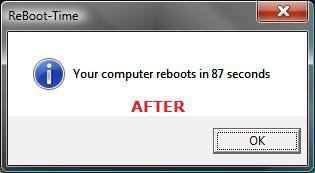
EXAMPLE: Boot Up Time Before and After
NOTE: This is the before and after boot up time for my computer after I changed it to use all 4 cores. To check and see your before and after boot up time, see: How to See What Your Boot Up Time is in Vista
For fun you can post your results here: ReBoot Time
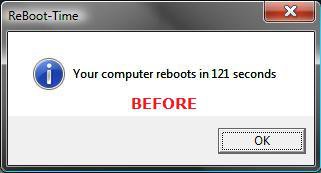
Before_ReBoot-Time.jpgAfter_ReBoot_Time.jpg


Here's How:
NOTE: Before you do this, you should see what your current boot up time is so you can compare it to what it will be after this. To check and see your before and after boot up time, see: How to See What Your Boot Up Time is in Vista

1. Open the Start Menu.
2. In the white line (Start Search) area, type msconfig and press Enter.
3. Click Continue for the UAC prompt.
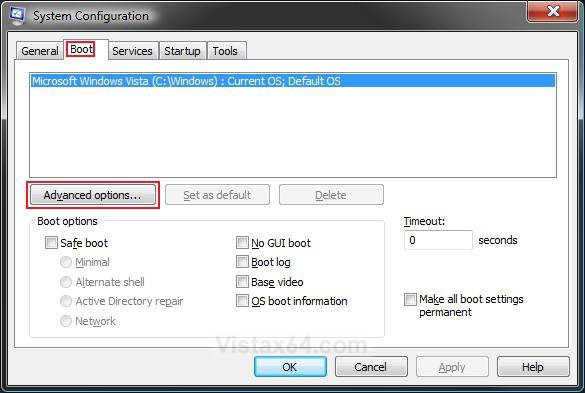
4. Click on the Boot tab. (See screenshot below)
5. Click on the Advanced options button.

Step1.jpg

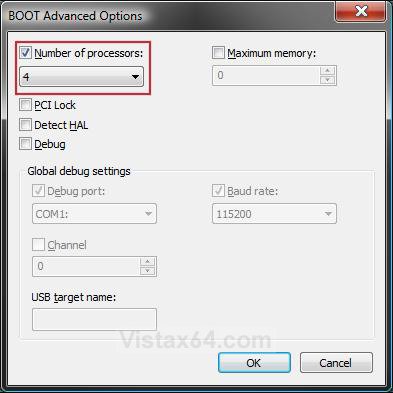
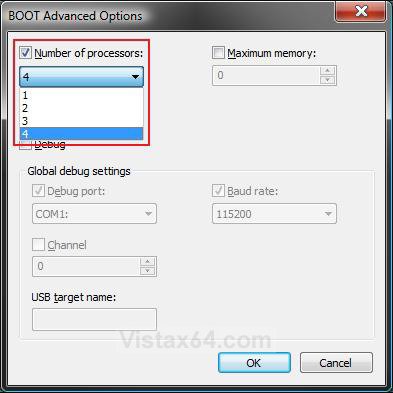
6. Check the Number of processors box, then click on the drop down arrow and select the number for all of your available cores or CPUs for the maximum performance gain. (See screenshots below)
NOTE: To Undo This - Uncheck the Number of processors box.

A) Click OK.

Step2A.jpgStep2B.jpg

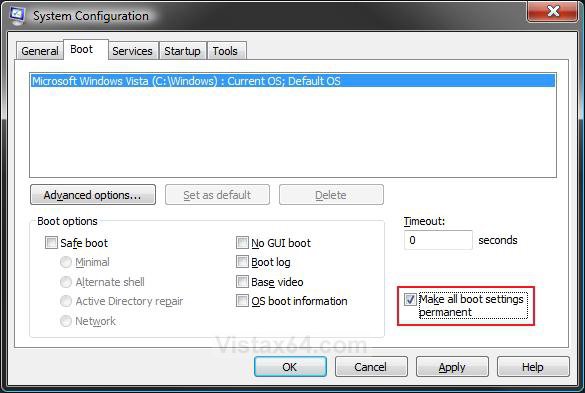
7. Check the Make all boot settings permanent box and click OK. (See screenshot below)

Step3.jpg

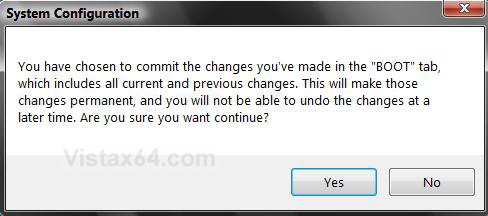
8. Click Yes at the confirmation window. (See screenshot below)
NOTE: You can make changes to this later if you want. I will confirm it.

Step4.jpg

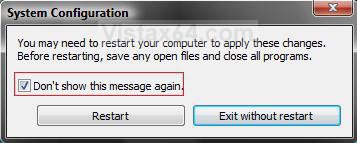
9. Check Don't show this message again. (See screenshot below step 10)
NOTE: You will not see this again after checked.

10. Click the Restart button.
NOTE: If you checked the box and want to restore this Restart box, see: How to Restore the System Configuration Restart Prompt in Vista
WARNING: This will restart the computer immediately. Make sure you save and close anything open you do not want to lose.

Step5.jpg

11. After you have started back to the desktop, you can check to see what your new boot up time is for fun.
NOTE: To check and see your before and after boot up time, see: How to See What Your Boot Up Time is in Vista
For fun you can post your results here: ReBoot Time
That's it,
Shawn
Published by
Brink's Avatar
Administrator
Join Date: Apr 2007
Location: Texas, USA
Posts: 13,014
Rep Power: 200
Brink has a reputation beyond reputeBrink has a reputation beyond reputeBrink has a reputation beyond reputeBrink has a reputation beyond reputeBrink has a reputation beyond reputeBrink has a reputation beyond reputeBrink has a reputation beyond reputeBrink has a reputation beyond reputeBrink has a reputation beyond reputeBrink has a reputation beyond reputeBrink has a reputation beyond repute

Tutorial Tools

Applies to
All Vista Versions
64 Bit & 32 Bit

Rating
Skill Level
40%40%40%
2

Page copy protected against web site content infringement by Copyscape

Old 05-13-2008  
TimUnrue
Newbie
TimUnrue has a spectacular aura aboutTimUnrue has a spectacular aura aboutTimUnrue has a spectacular aura about
 
TimUnrue's Avatar
 
Join Date: May 2008
Vista Ultimate 32bit SP1
Posts: 9

Re: Boot Advanced Options - Number of Processors

Thank you so much for this tip!!!

It nearly cut my startup time in half:

Before:

After:
TimUnrue is offline   Reply With Quote
Old 05-13-2008  
Brink
Administrator
Brink has a reputation beyond reputeBrink has a reputation beyond reputeBrink has a reputation beyond reputeBrink has a reputation beyond reputeBrink has a reputation beyond reputeBrink has a reputation beyond reputeBrink has a reputation beyond reputeBrink has a reputation beyond reputeBrink has a reputation beyond reputeBrink has a reputation beyond reputeBrink has a reputation beyond repute
 
Brink's Avatar
 
Join Date: Apr 2007
Vista x64 Ultimate SP1
Posts: 13,014

Location: Texas, USA
Re: Boot Advanced Options - Number of Processors

Your welcome Tim. That's a great improvement.

Shawn

There are no dumb questions, just the people that do not ask them.
Please post feedback to help others.
Brink is online now   Reply With Quote
Old 05-13-2008  
swarfega
da Cleaner
swarfega is on a distinguished road
 
swarfega's Avatar
 
Join Date: May 2008
Vista Home Premium 64bit
Posts: 35

Re: Boot Advanced Options - Number of Processors

Hi.

I try to load msconfig but I cant edit or change any settings. I click on a check box say and nothing happens. In boot tab the square box is empty.

Get the digital swarfega! This place needs a cleanup!
Asus Striker II Formula - Intel E8400 @ 3Ghz - XFX 9800 GTX XXX 512Mb - OCZ 4Gb PC2-8500 - WD Raptor X (OS) - WD Raptor 36gb (pagefile) - Samsung F1 1Tb - Thermaltake Toughpower 850w - Tuniq Tower 120 - Thermaltake Armor Case - SoundBlaster X-Fi XtremeMusic
swarfega is offline   Reply With Quote
Old 05-14-2008  
Brink
Administrator
Brink has a reputation beyond reputeBrink has a reputation beyond reputeBrink has a reputation beyond reputeBrink has a reputation beyond reputeBrink has a reputation beyond reputeBrink has a reputation beyond reputeBrink has a reputation beyond reputeBrink has a reputation beyond reputeBrink has a reputation beyond reputeBrink has a reputation beyond reputeBrink has a reputation beyond repute
 
Brink's Avatar
 
Join Date: Apr 2007
Vista x64 Ultimate SP1
Posts: 13,014

Location: Texas, USA
Re: Boot Advanced Options - Number of Processors

Strange Swarfega,

Do you have UAC turned On? It should be. Are you running this from within a administrator account and not a Standard one?

You can try running a sfc /scannow command to see if it can find and fix any bad system files that may be the cause. This tutorial will show you how to.


System Files - SFC Command

Hope this helps,
Shawn

There are no dumb questions, just the people that do not ask them.
Please post feedback to help others.
Brink is online now   Reply With Quote
Old 05-14-2008  
swarfega
da Cleaner
swarfega is on a distinguished road
 
swarfega's Avatar
 
Join Date: May 2008
Vista Home Premium 64bit
Posts: 35

Re: Boot Advanced Options - Number of Processors

Hi, I have uac turned off and created a true admin account which Im using now. I ran the sfc command and it didnt find any errors.

Get the digital swarfega! This place needs a cleanup!
Asus Striker II Formula - Intel E8400 @ 3Ghz - XFX 9800 GTX XXX 512Mb - OCZ 4Gb PC2-8500 - WD Raptor X (OS) - WD Raptor 36gb (pagefile) - Samsung F1 1Tb - Thermaltake Toughpower 850w - Tuniq Tower 120 - Thermaltake Armor Case - SoundBlaster X-Fi XtremeMusic
swarfega is offline   Reply With Quote
Old 05-14-2008  
Brink
Administrator
Brink has a reputation beyond reputeBrink has a reputation beyond reputeBrink has a reputation beyond reputeBrink has a reputation beyond reputeBrink has a reputation beyond reputeBrink has a reputation beyond reputeBrink has a reputation beyond reputeBrink has a reputation beyond reputeBrink has a reputation beyond reputeBrink has a reputation beyond reputeBrink has a reputation beyond repute
 
Brink's Avatar
 
Join Date: Apr 2007
Vista x64 Ultimate SP1
Posts: 13,014

Location: Texas, USA
Re: Boot Advanced Options - Number of Processors

Swarfega,

Open the Start menu and right click on Computer and click Properties. Under the System section, look to see if your CPU is properly identified as being a Core 2 Duo CPU 3 GHz.

Shawn

There are no dumb questions, just the people that do not ask them.
Please post feedback to help others.
Brink is online now   Reply With Quote
Old 05-14-2008  
swarfega
da Cleaner
swarfega is on a distinguished road
 
swarfega's Avatar
 
Join Date: May 2008
Vista Home Premium 64bit
Posts: 35

Re: Boot Advanced Options - Number of Processors

it is correctly identified

Get the digital swarfega! This place needs a cleanup!
Asus Striker II Formula - Intel E8400 @ 3Ghz - XFX 9800 GTX XXX 512Mb - OCZ 4Gb PC2-8500 - WD Raptor X (OS) - WD Raptor 36gb (pagefile) - Samsung F1 1Tb - Thermaltake Toughpower 850w - Tuniq Tower 120 - Thermaltake Armor Case - SoundBlaster X-Fi XtremeMusic
swarfega is offline   Reply With Quote
Old 05-14-2008  
Brink
Administrator
Brink has a reputation beyond reputeBrink has a reputation beyond reputeBrink has a reputation beyond reputeBrink has a reputation beyond reputeBrink has a reputation beyond reputeBrink has a reputation beyond reputeBrink has a reputation beyond reputeBrink has a reputation beyond reputeBrink has a reputation beyond reputeBrink has a reputation beyond reputeBrink has a reputation beyond repute
 
Brink's Avatar
 
Join Date: Apr 2007
Vista x64 Ultimate SP1
Posts: 13,014

Location: Texas, USA
Re: Boot Advanced Options - Number of Processors

Well, I must admit that I'm stumped on why your msconfig does not show any available options for you like the examples in the tutorial.

You might also post this question in the General Discussion forum and Vista General newsgroup to see if someone may know of a solution to this problem.

Sorry,
Shawn

There are no dumb questions, just the people that do not ask them.
Please post feedback to help others.
Brink is online now   Reply With Quote
Old 05-14-2008  
sidney1st
Member
sidney1st has a brilliant futuresidney1st has a brilliant futuresidney1st has a brilliant futuresidney1st has a brilliant futuresidney1st has a brilliant futuresidney1st has a brilliant futuresidney1st has a brilliant futuresidney1st has a brilliant futuresidney1st has a brilliant futuresidney1st has a brilliant futuresidney1st has a brilliant future
 
sidney1st's Avatar
 
Join Date: Apr 2008
Ultimate SP1 x64 & x32
Posts: 849

Location: Paris
Re: Boot Advanced Options - Number of Processors

Swarfega,
Try running regedit and the task manager, are they working well?

Sid.
sidney1st is offline   Reply With Quote
 
Comment

Tutorial Tools
Display Modes


Vistax64.com is an independent web site and has not been authorized,
sponsored, or otherwise approved by Microsoft Corporation.
"Windows Vista", the Start Orb, and related materials are trademarks of Microsoft Corp.
© Designer Media 2005-2008
Tutorial powered by GARS 2.1.8m ©2005-2006

1 2 3 4 5 6 7 8 9 10 11 12 13 14 15 16 17 18 19 20 21 22 23 24 25 26 27 28 29 30 31 32 33 34 35 36 37 38 39 40 41 42 43 44 45 46 47 48