
Enable or Disable Detailed Verbose Logon, Logoff, Startup, and Shutdown Status Messages in Vista and Windows 7
 Information
This will allow you to enable or disable displaying status messages that reflect each step in the process of starting, shutting down, logging on, or logging off the computer.This is disabled by default in Vista and Windows 7.
 Note
NoteIf enabled, you will get more detailed (verbose) status messages than just the normal "Logging On", "Logging Off", or "Shutting Down" messages.
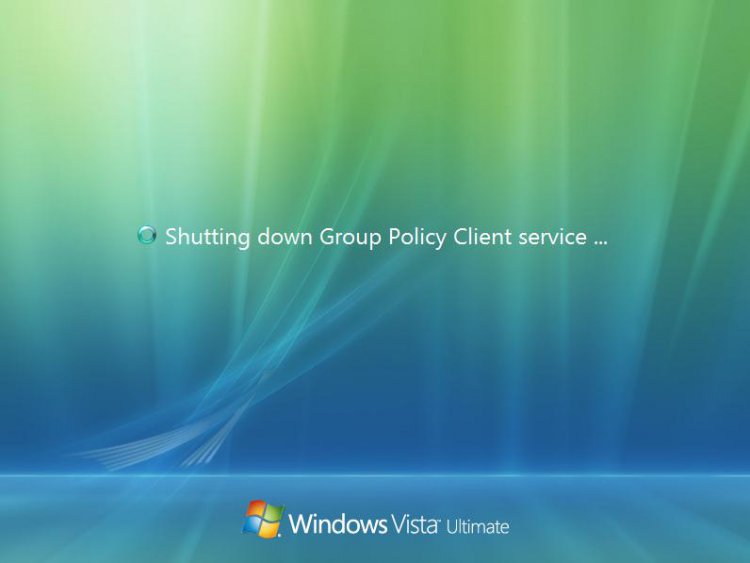
EXAMPLE: Shutdown with one Detailed Status Message step
 OPTION ONE
1. Open the Local Group Policy Editor.
2. In the left pane, click on Computer Configuration, Administrative Templates, and System (See screenshot below)
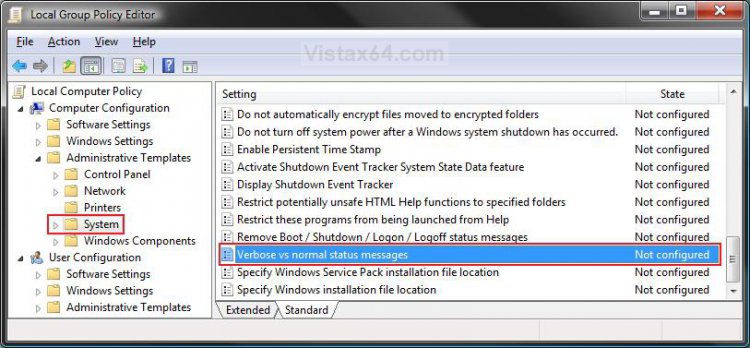
3. In the right pane, right click on Verbose vs normal status messages and click on Properties. (See screenshot above)
4. To Enable Detailed Status Messages
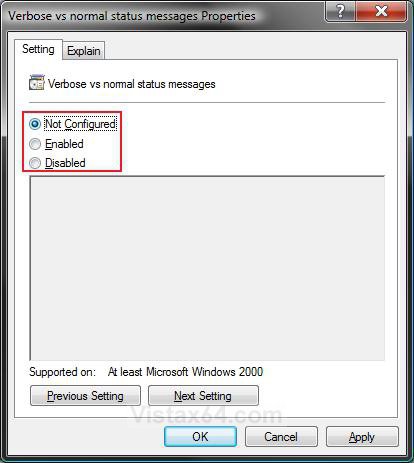
A) Select (dot) Disabled or Not Configured and click on OK. (See screenshot below step 5A)
B) Go to step 6.
5. To Disable Detailed Status Messages
A) Select (dot) Enabled and click on OK.
6. Close the Local Group Policy Editor window. Your done.
OPTION TWO 1. To Enable Detailed Status Messages
A) Click on the Download button below to download the file below.
Enable_Detailed_Status_Messages.reg

B) Go to step 3.
2. To Disable Detailed Status Messages
A) Click on the Download button below to download the file below.
Disable_Detailed_Status_Messages.reg
3. Click on Save, and save the .reg file to the Desktop.
4. Right click on the downloaded .reg file and click on Merge.
5. Click on Run, Continue (UAC), Yes, and then OK when prompted.
6. When done, you can delete the downloaded .reg file if you like.
7. Log off, shut down, or log on to see the changes.
OPTION THREE NOTE: This option will work for all Vista editions.
1. Open the Start Menu.
2. In the white line (Start Search) area, type regedit and press Enter.
3. Click on the Continue button in the UAC prompt.
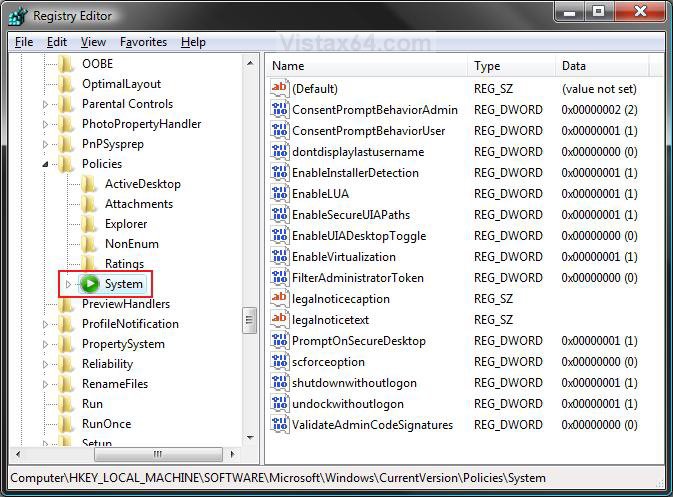
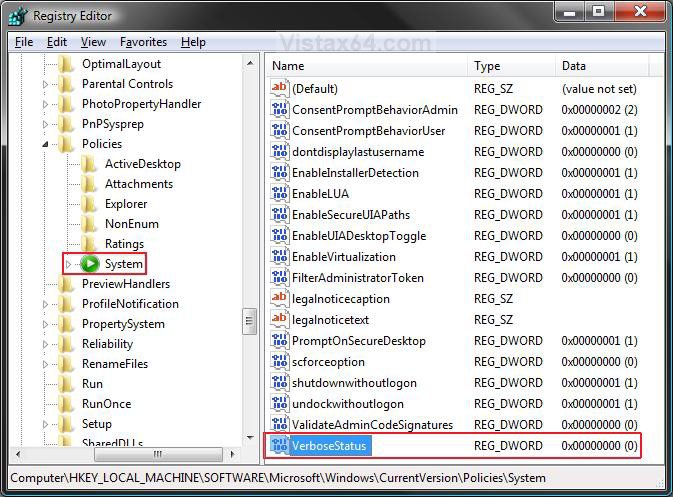
4. In regedit, go to: (See screenshot below)
HKEY_LOCAL_MACHINE\SOFTWARE\Microsoft\Windows\CurrentVersion\Policies\System
5. To Disable Detailed Status Messages
A) In the right pane, right click on a empty area and click on New and DWORD (32-bit) Value. (See screenshot below)
B) Type VerboseStatus and press Enter.
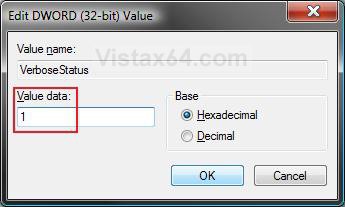
C) Right click on VerboseStatus and click on Modify.
D) Type 1 and click on OK. (See screenshot below)
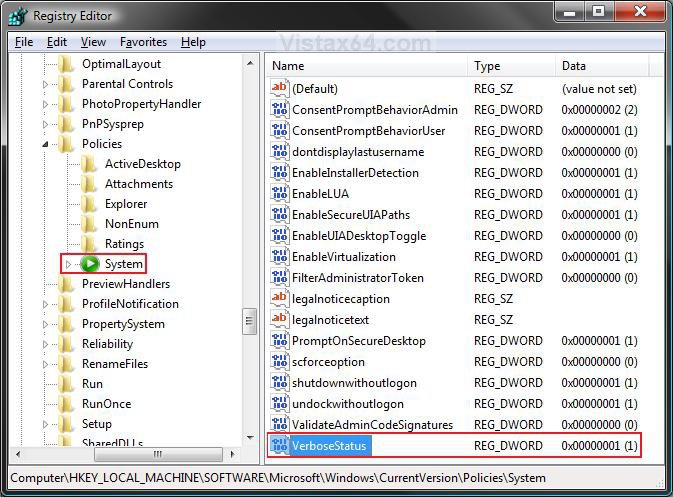
E) The registry will now look like this. (See screenshot below)
F) Go to step 7.
6. To Enable Detailed Status Messages
A) In the right pane, right click on VerboseStatus and click on Delete. (See screenshot above)
B) Click on Yes to confirm deletion.
7. Close regedit.
8. Log off, shut down, or log on to see the changes.
That's it's,Shawn
Related Tutorials
- How to See Vista Boot Information at Startup
- How to See the About Windows Vista and System Information
- How to See Windows Vista Current License Information
- How to Display Information About Previous Logons During User Logon in Vista
- How to See What the System Uptime is in Vista
- How to Create a Log Off Shortcut in Vista
- How to Create a Restart Computer Shortcut in Vista
- How to Create a Shutdown Computer Shortcut in Vista
Attachments

Last edited: