
How to Enable or Disable Vista Internet Explorer Content Advisor
 Information
Content Advisor is a tool for controlling the types of content that your computer can access on the Internet. This will show you how to enable or disable Content Advisor for all users in Vista. Content Advisor is disabled by default in Vista.
 Note
NoteDepending on how you configure the settings for it, Content Advisor uses ratings that websites voluntarily provide to block or allow certain content. Because not all websites are rated, unrated websites are automatically blocked (but you can choose to allow them). Once you've adjusted the settings and turn Content Advisor on, it checks websites as you visit them.
 Warning
You will need to do this while logged in to an administrator account.
 OPTION ONE
1. Open the Control Panel (Classic view), and click on the Internet Options icon.
A) Go to either step 3 or 4 depending on if you have enabled Content Advisor before or not.
OR
2. In Internet Explorer, click on Tools and Internet Options.
A) Go to either step 3 or 4 depending on if you have enabled Content Advisor before or not.
3. If Content Advisor has Not been Enabled Before
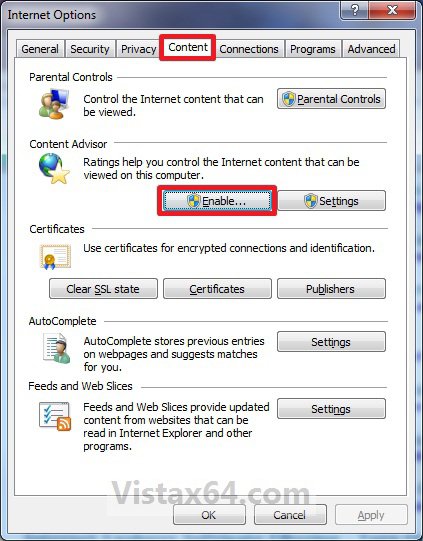
A) Click on the Content tab and on the Enable button. (See screenshot below)
B) If prompted by UAC, click on Continue.
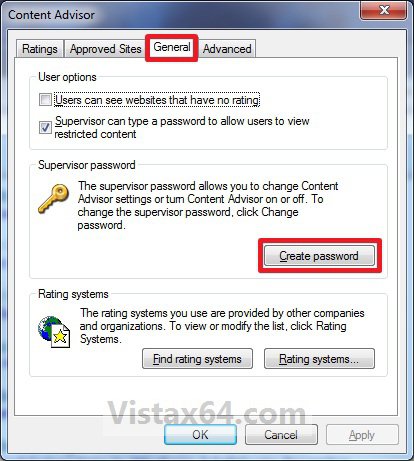
C) Click on the General tab and the Create Password button. (See screenshot below)
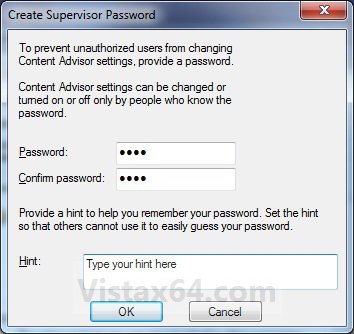
D) Type in your supervisor password twice to confirm it, then type in a hint and click on OK. (See screenshot below)
WARNING: Be sure to write this password down somewhere safe in case you need to look it up.
E) Click on OK. (See screenshot below)

F) Click on OK. (See screenshot below step 3C)
G) Click on OK. (See screenshot below)

H) Click on OK. (See screenshot below step 3A)
4. If Content Advisor has been Enabled Before
A) Click on the Content tab and on the Enable button. (See screenshot below)
B) If prompted by UAC, click on Continue.
C) Type in your Content Advisor supervisor password created from step 3 earlier and click on OK. (See screenshot below)
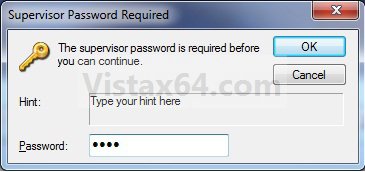
D) Click on OK. (See screenshot below)

E) Click on OK. (See screenshot below step 4A)
OPTION TWO 1. Open the Control Panel (Classic view), and click on the Internet Options icon.
A) Go to step 3.
OR
2. In Internet Explorer, click on Tools and Internet Options.
3. Click on the Content tab and on the Disable button. (See screenshot below)
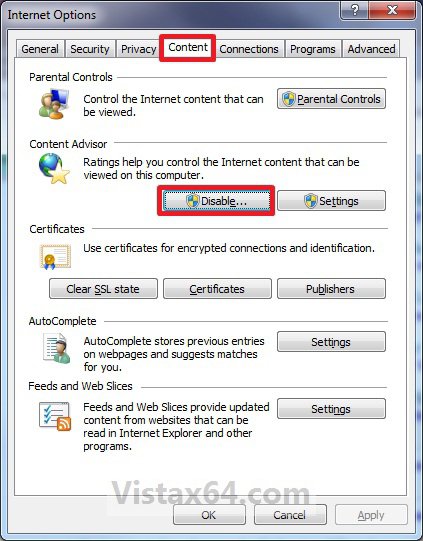
4. If prompted by UAC, click on Continue.
5. Type in your Content Advisor supervisor password and click on OK. (See screenshot below)
6. Click on OK. (See screenshot below)

7. Click on OK. (See screenshot below step 3)
That's it,Shawn
Related Tutorials
- How to Reset Vista Internet Explorer Content Advisor
- How to Reset or Change the Internet Explorer Content Advisor Password
- How to Change the Internet Explorer Content Advisor Ratings Level
- How to Allow or Block Specific Websites in Internet Explorer Content Advisor
- How to Allow or Block Unrated Websites with Internet Explorer Content Advisor
Attachments

Last edited: