
How to Reset or Change the Internet Explorer Content Advisor Password
 Information
This will show you how to reset or change the Vista Internet Explorer Content Advisor supervisor password.
 Warning
You will need to do this while logged in to an administrator account.
 OPTION ONE
NOTE: This option is for when you do not know your current Internet Explorer Content Advisor supervisor password and need to reset it and enter a new password. If you know your supervisor password, then see OPTION TWO below instead.
1. Click on the Download button below to download the file below.
Reset_Content_Advisor_Password.zip

A) Click on Save, and save the .zip file to the desktop.
B) Open the .zip file and extract the .reg file to the desktop.
C) Right click the .reg file (On Desktop) and click on Merge.
D) Click on Run, Continue, Yes, and OK when prompted.
E) When done, you can delete the downloaded .reg and .zip files on the desktop if you like.
F) Go to step 3.
OR
2. Open the Start Menu.
A) In the search line, type regedit and press Enter.
B) If prompted by UAC, then click on Continue.
C) In regedit, go to: (See screenshot below)
HKEY_LOCAL_MACHINE\SOFTWARE\Microsoft\Windows\CurrentVersion\Policies\Ratings
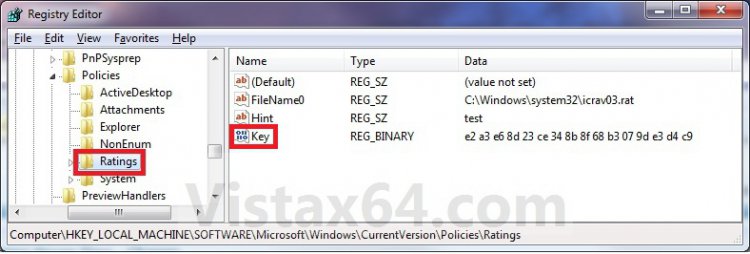
D) In the right pane of Ratings, right click on Key and click on Delete. (See screenshot above)
E) Click on Yes to confirm deletion. (See screenshot below)

F) Close regedit.
3. In Internet Explorer, click on Tools and Internet Options.
NOTE: You can also open the Control Panel (Classic view), and click on the Internet Options icon instead.
4. Click on the Content tab and on the Settings button. (See screenshot below)
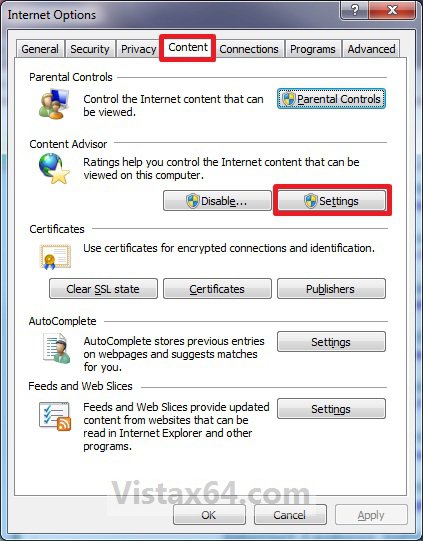
5. If prompted by UAC, then click on Continue.
6. Click on the General tab and the Create Password button. (See screenshot below)
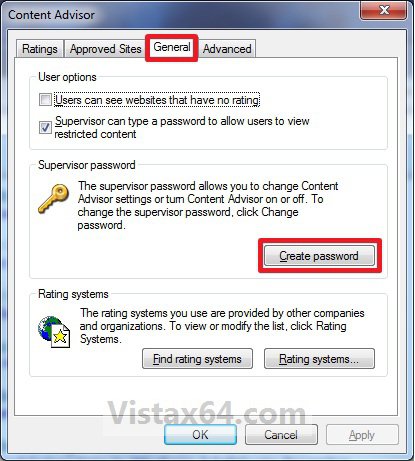
7. Type in your new supervisor password twice to confirm it, then type in a hint and click on OK. (See screenshot below)
WARNING: Be sure to write this password down somewhere safe in case you need to look it up.
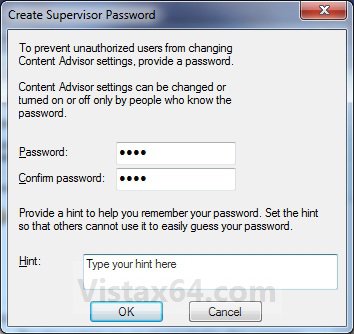
8. Click on OK. (See screenshot below)

9. Click on OK. (See screenshot below step 6)
10. Click on OK. (See screenshot below step 4)
OPTION TWO NOTE: This option is when you know your current Internet Explorer Content Advisor supervisor password and would just like to change it.
1. Open the Control Panel (Classic view), and click on the Internet Options icon.
A) Go to step 3.
OR
2. In Internet Explorer, click on Tools and Internet Options.
3. Click on the Content tab and on the Settings button. (See screenshot below)
4. If prompted by UAC, then click on Continue.
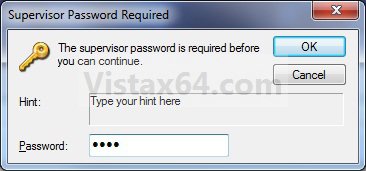
5. Type in your current Content Advisor supervisor password and click on OK. (See screenshot below)
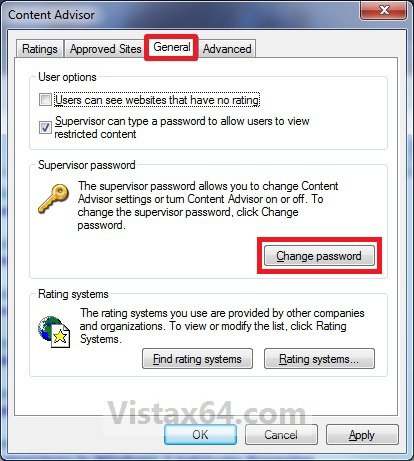
6. Click on the General tab and the Change Password button. (See screenshot below)
7. Type in the old supervisor password and your new password twice to confirm it, then type in a hint and click on OK. (See screenshot below)

8. Click on OK. (See screenshot below)

9. Click on OK. (See screenshot below step 6)
10. Click on OK. (See screenshot below step 3)
That's it,Shawn
Related Tutorials
- How to Enable or Disable Vista Internet Explorer Content Advisor
- How to Reset Vista Internet Explorer Content Advisor
- How to Change the Internet Explorer Content Advisor Ratings Level
- How to Allow or Block Specific Websites in Internet Explorer Content Advisor
- How to Allow or Block Unrated Websites with Internet Explorer Content Advisor
Attachments

Last edited: