Windows Vista Forums
Vista Forums Home Join Vista Forums Windows 7 Forum Vista Tutorials Tags
Welcome to Windows Vista Forums. Our forum is dedicated to helping you find solutions with any problems, errors or issues you are experiencing with Windows Vista. The Vista forum also covers news and updates and has an extensive Windows Vista tutorial section that covers a wide range of tips and tricks.

Go Back   Vista Forums > Vista Forums > Tutorials

Vista - Internet Explorer Content Advisor - Change Ratings Level

Comment
 

Internet Explorer Content Advisor - Change Ratings Level

How to Change the Internet Explorer Content Advisor Ratings Level
Published by Brink
04-03-2009

How to Change the Internet Explorer Content Advisor Ratings Level

Information
  Content Advisor uses ratings that websites provide to identify potentially offensive content. This will show you how to change the category rating levels to what level you want instead. By default, Internet Explorer is set for the strongest (or most inoffensive) level of ratings.
WARNING
  You will need to do this while logged in to an administrator account.
RELATED LINKS:


Here's How:
1. If not already, then enable Internet Explorer Content Advisor.

2. Open the Control Panel (Classic view), and click on the Internet Options icon.
A) Go to step 4.
OR

3. In Internet Explorer, click on Tools and Internet Options.

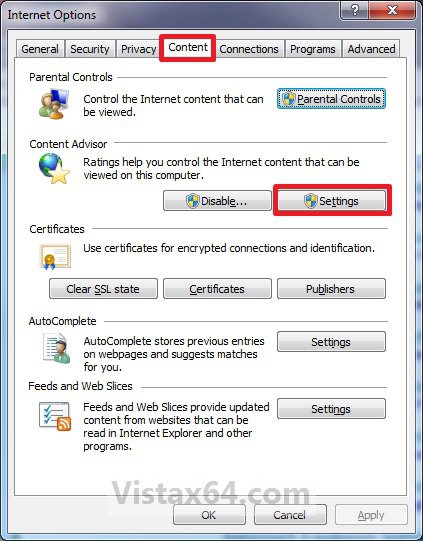
4. Click on the Content tab and on the Settings button. (See screenshot below)
settings1.jpg
5. If prompted by UAC, then click on Continue.

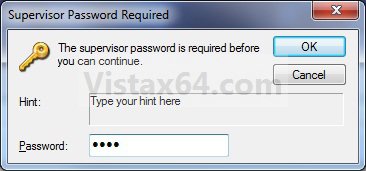
6. Type in your Content Advisor supervisor password and click on OK. (See screenshot below)
Name:  Settings2.jpg
Views: 274
Size:  41.8 KB
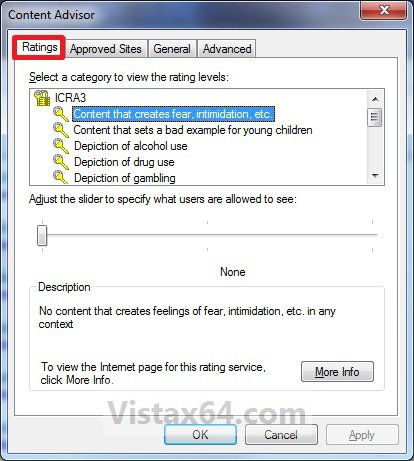
7. Click on the Ratings tab. (See screenshot below)
settings_ratings.jpg
8. Select a category in the upper section, then adjust the rating slider to the what level you want all users to be allowed to see. Repeat this until you have changed the rating levels for each category that you have wanted to change.(See screenshot above)

9. When done, click on OK. (See screenshot below step 7)

10. Click on OK. (See screenshot below step 4)
That's it,
Shawn

Published by
Brink's Avatar
Administrator

Join Date: Apr 2007
Location: Texas, USA
Posts: 25,934
Rep Power: 150
Brink has a reputation beyond reputeBrink has a reputation beyond reputeBrink has a reputation beyond reputeBrink has a reputation beyond reputeBrink has a reputation beyond reputeBrink has a reputation beyond reputeBrink has a reputation beyond reputeBrink has a reputation beyond reputeBrink has a reputation beyond reputeBrink has a reputation beyond reputeBrink has a reputation beyond repute

Tutorial Tools

Applies to
All Vista Versions
64 Bit & 32 Bit

Comment

Tutorial Tools


Similar Threads
Tutorial Category
Internet Explorer Content Advisor - Allow or Block Unrated Websites Tutorials
Internet Explorer Content Advisor - Allow or Block Specific Websites Tutorials
Internet Explorer Content Advisor - Reset or Change Password Tutorials
Internet Explorer Content Advisor - Reset Tutorials
Internet Explorer Content Advisor - Enable or Disable Tutorials


Vista Forums is an independent web site and has not been authorized,
sponsored, or otherwise approved by Microsoft Corporation.
"Windows Vista", the Start Orb, and related materials are trademarks of Microsoft Corp.
© Designer Media Ltd
Tutorial powered by GARS 2.1.8m ©2005-2006

1 2 3 4 5 6 7 8 9 10 11 12 13 14 15 16 17 18 19 20 21 22 23 24 25 26 27 28 29 30 31 32 33 34 35 36 37 38 39 40 41 42 43 44 45 46