
How to Troubleshoot a Vista or Windows 7 Sleep Mode Problem
 Information
This will show you some steps to help you troubleshoot and find out what is causing your sleep mode problem. These are the usual reasons for sleep mode problems. For more information, see: Windows Help and How-to: Turn Off a Computer FAQs
 Note
Note- When your computer is in hibernation, the only way to wake it is to tap the case power button.
- If this sleep mode problem just started recently, then you might consider doing a System Restore before or after trying the steps below if they do not help.
- Computer will wake up for no reason.
- Sleep mode does not work any more.
- Hibernate option is not available in Power Options, then you accidentally deleted the Hibernation file Cleaner in Disk Cleanup.
- Screen saver not working.
 Tip
TipBEFORE STARTING:Make sure you have the latest device drivers and BIOS installed for your motherboard.NOTE: A out-of-date video driver or other drivers are sometimes the source of sleep mode problems. It is best to keep these up to date to resolve issues found with them.
 STEP 1
NOTE: A wireless mouse and keyboard can cause your computer to wake up for no apparent reason, and to not wake up from sleep mode when you press a key or move the mouse. This may also cause your screen saver to not work to. If the computer is using an optical mouse, changes in light can cause the computer to wake.
For a USB Mouse or Keyboard:
1. Check the BIOS settings to make sure that you have a Legacy USB option enabled.
For a Wireless Mouse or Keyboard:
1. Unplug the receiver on the back of the computer and test.
2. If sleep or hibernation works now, then try:
A) Download new drivers for you wireless mouse and test again with the receiver plugged in.
NOTE: Always get your drivers from the source, never from Windows Updates. They do not work properly sometimes.
B) Disable the wireless mouse and/or keyboard wake up option in Step Five below. If you have to disable both of them, then you can wake the computer up by pressing the power button on the case.
C) Time to get a new mouse and/or keyboard that is compatible with Vista.
For a Optical Mouse:
1. Try not to have direct bright light shining on the sensor or moving around it.
STEP 2 NOTE: Power settings control the computer’s ability to go into and come out of sleep/standby mode.
1. Open the Control Panel. (Classic View)
2. Click on the Power Options icon.
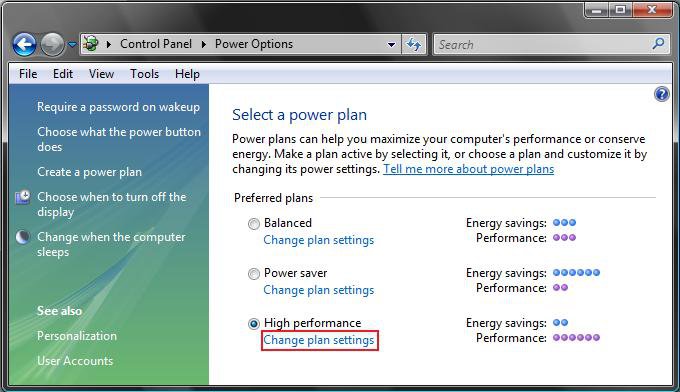
3. Click on the Change plan settings link under your power plan. (See screenshot below)
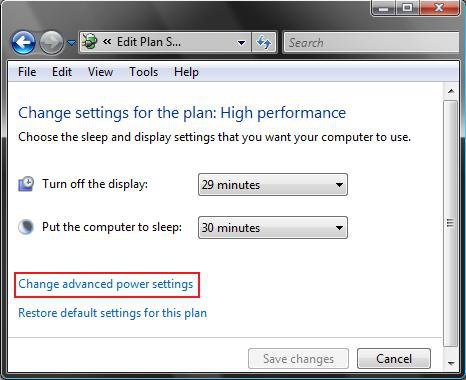
4. Click on Change advanced power settings. (See screenshot below)
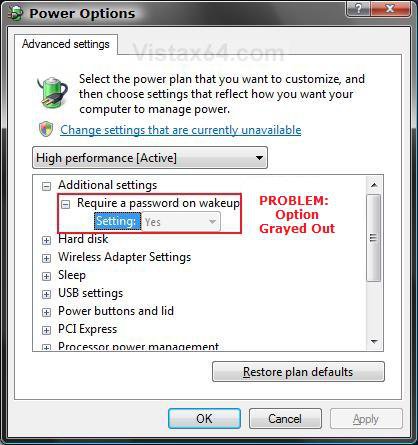
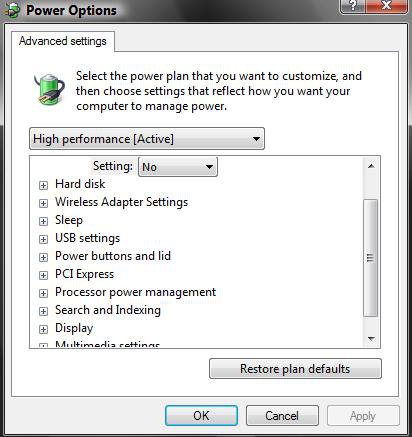
5. Click on Change settings that are currently unavailable. (See screenshots below step 10)
NOTE: This will allow any Power Options that are grayed out to now work and not be grayed out.
6. Recommended Settings for Sleep
NOTE: Sleep saves any open documents and programs to memory only, and then puts the computer into a low-power state.
WARNING: If you lose power to the computer, you will also lose what is in memory.
[TABLE=class:-grid,-width:-700][TR][TD]Main Setting
[/TD]
[TD]
Sub Setting
[/TD]
[TD]
Recommendation
[/TD][/TR]
[TR][TD]
Hard disk
[/TD]
[TD]
[/TD]
[TD]
Set to at least 1 minute before the computer (Sleep after setting below) is set to sleep.
[/TD][/TR]
[TR][TD]
Sleep
[/TD]
[TD]
Sleep after
[/TD]
[TD]
This is for the computer. Set to at least 1 minute after Hard disk and Display is set to turn off.
[/TD][/TR]
[TR][TD]
Sleep
[/TD]
[TD]
Allow hybrid sleep
[/TD]
[TD]
Set to Off.
[/TD][/TR]
[TR][TD]
Sleep
[/TD]
[TD]
Hibernate after
[/TD]
[TD]
Set to Never.
[/TD][/TR]
[TR][TD]
USB settings
[/TD]
[TD]
USB selective suspend setting
[/TD]
[TD]
Set to Disabled.
[/TD][/TR]
[TR][TD]
Power buttons and lid
[/TD]
[TD]
Start menu power button
[/TD]
[TD]
Set to Sleep.
[/TD][/TR]
[TR][TD]
PCI Express
[/TD]
[TD]
Link State Power Management
[/TD]
[TD]
Set to Off.
[/TD][/TR]
[TR][TD]
Display
[/TD]
[TD]
Turn off display after
[/TD]
[TD]
Set to at least 1 minute before the computer (Sleep after setting above) is set to sleep. Usually set this as the same as the Hard drive is set to turn off.
[/TD][/TR]
[TR][TD]
Multimedia settings
[/TD]
[TD]
When sharing media
[/TD]
[TD]
Set to Allow the computer to sleep.
[/TD][/TR][/TABLE]
7. Recommended Settings for Hybrid Sleep
NOTE: Hybrid sleep saves your open documents and programs to memory and to the hard drive, and then puts the computer into a low-power state. After the Hibernate after time you set, it will then put the computer into hibernation.
WARNING: Use the same Recommended Settings for Sleep in step 6 above, except for these changes:
[TABLE=class:-grid,-width:-700][TR][TD]Main Setting
[/TD]
[TD]
Sub Setting
[/TD]
[TD]
Recommendation
[/TD][/TR]
[TR][TD]
Sleep
[/TD]
[TD]
Allow hybrid sleep
[/TD]
[TD]
Set to On.
[/TD][/TR]
[TR][TD]
Sleep
[/TD]
[TD]
Hibernate after
[/TD]
[TD]
Set to at least 1 minute after the computer (Sleep after setting above) is set to sleep.
[/TD][/TR][/TABLE]
8. Recommended Settings for Hibernation
NOTE: Hibernation is a power-saving state that saves your open documents and programs to the hard drive and then turns off your computer. If Hibernate after is not listed, then make sure that you have the Hibernation File enabled or restored to. It is by default unless it was cleaned in Disk Cleanup.
WARNING: Use the same Recommended Settings for Sleep in step 6 above, except for these changes:
[TABLE=class:-grid,-width:-700][TR][TD]Main Setting
[/TD]
[TD]
Sub Setting
[/TD]
[TD]
Recommendation
[/TD][/TR]
[TR][TD]
Sleep
[/TD]
[TD]
Sleep after
[/TD]
[TD]
Set it to Never.
[/TD][/TR]
[TR][TD]
Sleep
[/TD]
[TD]
Allow hybrid sleep
[/TD]
[TD]
Set it to Never.
[/TD][/TR]
[TR][TD]
Sleep
[/TD]
[TD]
Hibernate after
[/TD]
[TD]
Set it to at least 1 minute after Hard disk and Display is set to turn off.
[/TD][/TR]
[TR][TD]
Power buttons and lid
[/TD]
[TD]
Start menu power button
[/TD]
[TD]
Set it to Hibernate.
[/TD][/TR][/TABLE]
9. Click on OK to apply
10. Just exit out the other windows.
11. Test sleep mode. If it is still not working correctly, then continue to the next step.
STEP 3 NOTE: Make sure you have the latest Video drivers and BIOS for your motherboard. Read your motherboard manual to see if you have any jumpers or settings that sets different sleep voltages for USB.
1. Open the Start Menu.
2. In white line (Start Search) area, type cmd and press Enter.
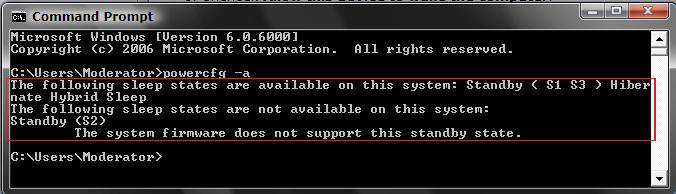
3. In command prompt, type powercfg -a and press Enter. (See screenshot below)
NOTE: This will give you a report of the available sleep states for your computer and will attempt to report reasons why sleep states are unavailable. You will want to see if the ACPI S1 and/or S3 is listed.
4. Restart the computer into the BIOS settings, and go into the Power Management section in the BIOS.
NOTE: Usually you will press the F2 or Delete key as soon as your computer starts booting to enter the BIOS.
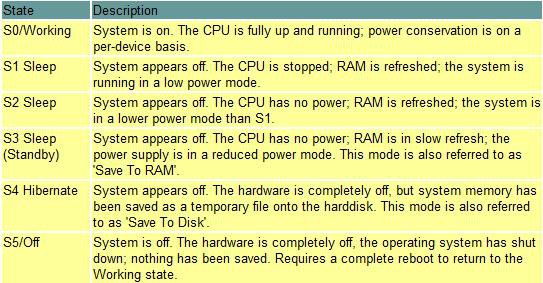
5. Make sure ACPI mode: S3 or S1 is enabled.
WARNING: S1 (Sleep) and S3 (Hybrid deeper sleep). If you are running an incompatible video card, some or all of these states below may be unavailable. If one of the settings causes your computer to not wake back up afterwards, then reset the CMOS on the motherboard and restart the computer, or unplug the computer for a moment and plug it back in, and reset the BIOS back to the factory default settings.
6. Make sure Wake on Ring and Wake on Lan are disabled.
NOTE: This will help keep the computer from waking up on its own.
7. Save the BIOS setting changes and exit to restart the computer.
8. Test sleep mode. If this does not help, then move on to the next step.
STEP 4 NOTE: This will give you a list of items that woke up the computer last that may help narrow down what is waking up the computer.
1. Open the Start Menu.
2. In white line (Start Search) area, type cmd and press Enter.
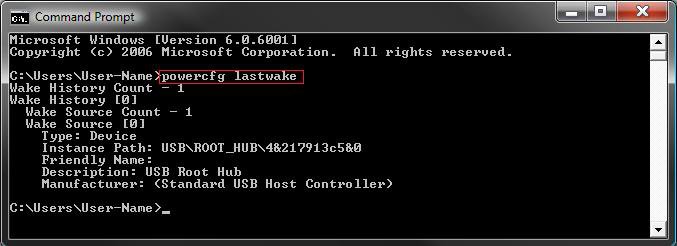
3. In command prompt, type powercfg lastwake and press Enter. (See screenshot below)
NOTE: Notice that I had USB\ROOT\HUB listed. For me, this would be the USB wireless mouse. Your list results will vary of course.
STEP 5 NOTE: This will show you a list of devices that are able to wake up your computer to help you narrow down a device that may be responsible for waking up your computer. It does not mean that these devices are the ones that woke up your computer though, just that they are able to.
1. Open an elevated command prompt.
2. To List Devices that Can Wake Up the Computer
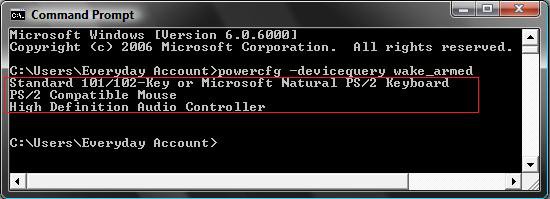
A) In the command prompt, copy and paste in bold: (See screenshot below)
powercfg -devicequery wake_armed and press Enter.
B) Go through the list of devices to see if you have one you do not want to wake up your system.
EX: A Network Device (Modem, Ethernet, etc.) or Wireless Mouse.
C) If you found a device that may be causing the problem, then check with the STEP SIX section below first to see if you can disable a wake up option for the device in it's Power Management settings in Device Manager to test to see if that is it before proceding.
3. To Disable a Listed Device From Waking Up the Computer
NOTE: Only do this step if you cannot do it from STEP SIX below using Device Manager instead.
A) In the elevated command prompt, type below in bold and press Enter.
WARNING: Be sure to write this device name down in case you want to be able to enable it again in step 4. Once you disable it, it will not be listed again in step 2A until enabled again.
powercfg -devicedisablewake "exact name of device listed in step 2A"
NOTE: For example, if I wanted to disable the listed (step 2A) High Definition device (HDAC), then I would type powercfg -devicedisablewake "High Definition Audio Controller" and press enter.
4. To Enable a Listed Device Again to Waking Up the Computer
NOTE: Only do this step if you cannot do it from STEP SIX below using Device Manager instead, or you have done step 3 above with the device.
A) In the elevated command prompt, type below in bold and press Enter.
powercfg -deviceenablewake "exact name of device listed in step 2A"
NOTE: For example, if I wanted to reenable the High Definition device (HDAC) that was disable and removed from the list in step 3, then I would type powercfg -deviceenablewake "High Definition Audio Controller" and press enter.
5. When done, close the elevated command prompt, and test sleep mode.
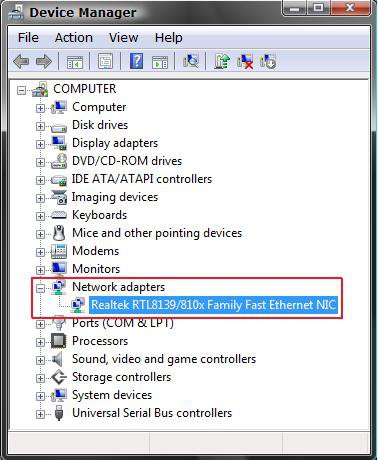
STEP 6 Note- Check your Network device. Network activity can cause the network hardware to wake the computer, especially when the network is always on (like cable and DSL connections).
- High Definition Audio, if listed in STEP FIVE, may also rarely cause the computer to wake from sleep mode. You can disable (only option available) the device as a test in Device Manager to see before putting the computer to sleep. Just enable it again if it is not the problem.
1. Open the Control Panel. (Classic View)
2. Click on the Device Manager icon.
NOTE: You need to be in a Administrator account.
3. Click on Continue in the UAC prompt.
4. Open the device's list that you want to change. (See screenshot below)
EX: Network Devices
5. Right click on the device name and click on Properties.
EX: Network Devices
6. Click on the Power Management tab. (See screenshot below)
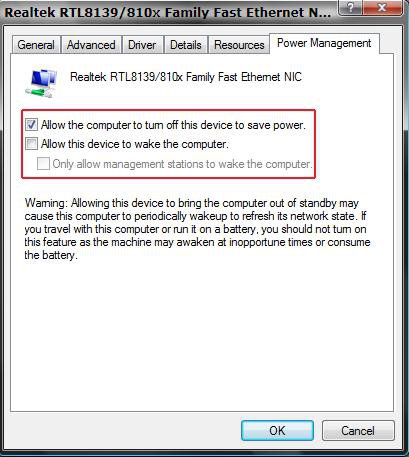
7. Uncheck Allow this device to wake the computer. (See screenshot above)
NOTE: To Enable it again, just check this instead. If you need to disable the wireless mouse and keyboard, then you can wake the computer by pressing the power button on the case.
8. If listed, check Allow the computer to turn off this device to save power. (See screenshot below step 6)
NOTE: This will turn the device off when the computer goes into sleep mode.
9. Click on the Advanced tab. (See screenshot below)
NOTE: This is only for the Network device.
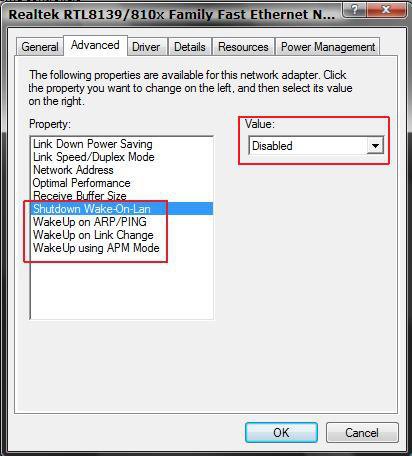
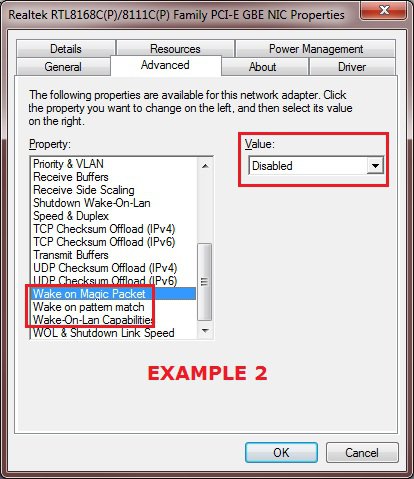
10. Check the boxed in red Property: items below to see if they are set to Disabled in the Value: area. (See screenshot above)
NOTE: This area may be different for your particular network device since it is based on the driver, but it should be similar. You will be looking for any Wake on type property options listed.
11. Click on OK to apply and close properties window. (See screenshot below step 6 or 9)
STEP 7 NOTE: Some screen savers can interfere with the computer’s ability to go into and come out of sleep/standby mode. Disabling or changing the screen saver may resolve the problem.
1. In the Screen saver settings, select an alternate screen saver, or set it to None, then click on OK.
2. Test sleep mode.
STEP 8 Note- Many software components start up automatically with Vista and run in the background. Some of these programs may not be necessary, and can interfere with the sleep/standby mode. For troubleshooting purposes, use the following steps to prevent programs from starting up with Vista to see if this is the issue.
- If you are having these problems, you can avoid from having to do this completely if you logoff and put the computer to sleep from within the logon screen.
1. Open the Start Menu.
A) In the white line (Start Search) area, type msconfig and press Enter.
B) Go to step 3.
OR
2. Click on All Programs, Administrative Tools, and System Configuration.
3. Click on Continue in the UAC prompt.
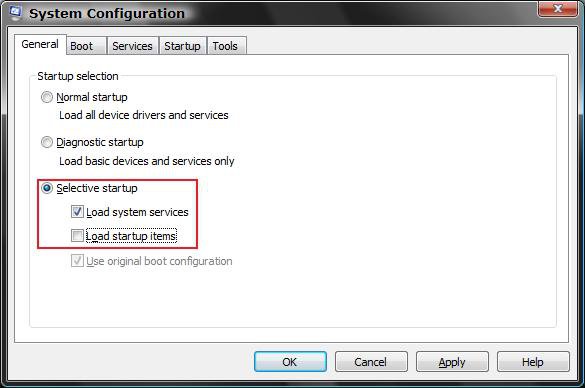
4. Under the General tab, dot Selective startup. (See screenshot below)
NOTE: When done with the test, dot Normal startup, to return to the default settings before the test, and click on OK.
5. Uncheck Load startup items and click on OK and restart the computer.
NOTE: You will get a notification that you made changes to the Startup programs in the bottom right Notification area. Just ignore it for now. It will go away when you put it back to Normal startup after you finish.
6. Test sleep mode.
7. If unchecking (disabling) Load startup items fixed the sleep problem, then enable one startup item at a time and test to see if the problem occurs again. Continue enabling startup items, until you find the program that is causing the problem. Remove or update the problem program.
NOTE: See Method One or Two here: How to Check and Change the Startup Programs in Vista
A) When done, change the setting back to Normal startup (step 4).
8. If unchecking (disabling) Load startup items did not resolve the sleep problem, then set it back to Normal startup (Step 4) and go to the next step below.
STEP 9 NOTE: Sometimes a program will have something scheduled to run that will wake the computer up. Try turning them off temporarily to see if it resolves the problem.
1. Check in the suspected program settings to see if there is a feature that may wake the computer.
NOTE: Sometimes it can be the Auto-Update feature in the program.
2. Check Task Scheduler for items that are set to Wake-Up the computer to perform it's action.
A) Expand out the list in the left pane and click on the suspect item's folder. Double click on the task in the middle pane.
B) Click on the Conditions tab.
C) Uncheck the Wake the computer to run this task box.
3. Check Windows Automatic Updates settings.
STEP 10 NOTE: Sometimes a Windows Sidebar Gadget may cause the computer to not sleep on it's own.
1. Turn off Windows Sidebar as a test to see if your computer will enter sleep on it's own now.
NOTE: Sometimes, you may need to restart the computer afterwards as well.
2. If it does, then turn Windows Sidebar back on and turn off each Gadget one by one. Test sleep again after each one until you find the one causing the problem.
STEP 11 NOTE: A few motherboards have been reported has having jumpers on the board for certain functions (ex: USB device wake-up) that may need to be enabled or disabled.
1. Pull out or download your motherboard manual, and check for any such jumpers.
2. If you have one that is related (ex: USB device wake-up), then test sleep mode inbetween toggling the jumper on and off.
STEP 12 NOTE: This may help if your computer will sleep fine manually, but will not sleep automatically or not go to sleep at all. Credit to Artxie for this.
1. Open Services, and temporaily Stop the Print Spooler service.
2. Open the Start Menu and type %WINDIR%\system32\spool\printers in the search line and press enter, then delete all files in this folder.
3. In Services, Start the Print Spooler service. Close Services window.
NoteIf the print spooler issue persists, the installed printer driver may not be compatible or corrupted. Check the printer manufacturer's website to download and install the latest Windows compatible driver for it.
STEP 13 NOTE: This will show you how to enable or disable the Windows Media Center (mcupdate) task from waking up the computer from sleep when it checks for Media Center updates in Windows 7 and Vista.
1. For how, see: Windows Media Center Updates - Enable or Disable Waking Computer - Windows 7 Forums
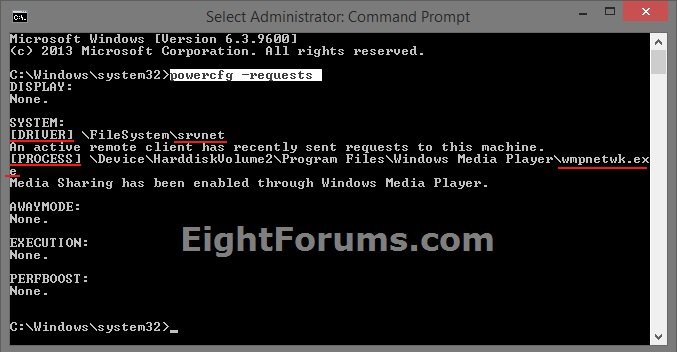
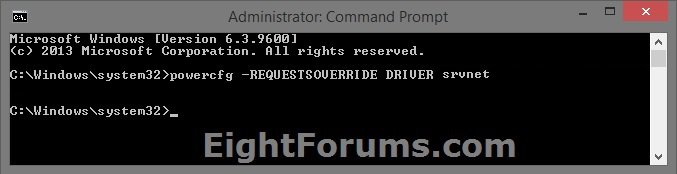
STEP 14 By using power availability requests, applications, services, and drivers can temporarily disable power management features to accomplish user scenarios. Availability requests can prevent the display from turning off after inactivity, and prevent the computer from automatically sleeping, enable Away Mode, and shutting down.
1. For how, see: How to View and Override Power Availability Requests in Windows
 STEP 15
 NOTE: If sleep/standby mode previously worked, attempt a system restore back to a time when it worked. If the problem has always existed, skip this step.
1. Save any open files and close all programs, then backup anything that you do not want to lose to be safe..
2. See: How to Do a System Restore in Vista
NOTE: If System Restore resolves the problem, the problem is probably caused by software that was installed after the restore point date.
I hope this helps,
Shawn
Related Tutorials
- How to Change Power Button Settings for the Start Menu and Case in Vista
- How to Disable or Enable Password Protection on Wakeup in Vista
- How to Create a Hibernate Shortcut in Vista
- How to Use and Change a Screen Saver in Vista
- How to Create a Power Options Shortcut in Vista
- How to Restore or Disable Hibernation in Vista
- How to Changed the Return to Sleep Timeout for a Unattended Wake Up in Vista
- SP1 Causes Hibernation Error: "System was shut down unexpectantly"
- How to Restore the Default Power Plan Settings in Vista
- How to Enable or Disable Windows Media Center Updates to Wake Up the Computer
- How to Read the Wake Source Log in Event Viewer for Windows 7 and Vista
- How to View and Override Power Availability Requests in Windows
Attachments

Last edited by a moderator:


 Though entering sleep is not a problem. And I'm using wireless at home.
 Though I really doubt it.
 Hope this helps.