
How to Hide or Show Hidden Files and Folders in Vista
 Information
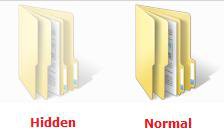
A hidden file or folder is just like any other file or folder except that it is hidden from normal view. When you have them set to show, they show as transparent to indicate that they are a hidden file or folder. Protected System files are also hidden to help prevent you from accidentally altering them. These are set to be hidden by default in Vista.
 Warning
It is best to not touch the system files unless you know what you are doing. Doing so can result in having to reinstall Vista.
EXAMPLE: A Hidden and Normal Folder
 OPTION ONE
1. Right click on the file or folder and click on Properties.
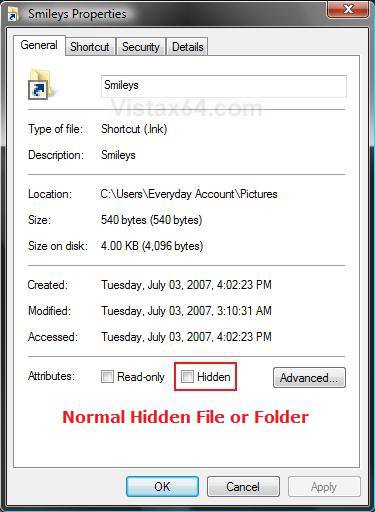
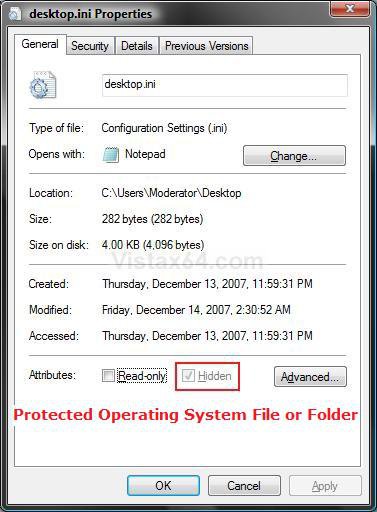
2. Click the General tab. (See screenshot below)
3. To Hide the File or Folder
A) Check the Hidden box. (See left screenshot below step 5)
B) Go to step 5.
4. To Unhide the File or Folder
A) Uncheck the Hidden box. (See left screenshot below step 5)
NOTE: Since the file or folder is hidden, you will need to do step 2 in OPTION TWO below to see it. The Protected operating system files and folders Hidden box is grayed out and cannot be unchecked. (See right screenshot below step 5)
5. Click on OK to apply and close properties.
NOTE: If the changes will not apply, then make sure it is temporarily not set as read-only.
OPTION TWO NOTE: If the Show and Hide options are not in Folder Options, then see: How to Add or Remove the Hidden Files and Folders Option in Vista
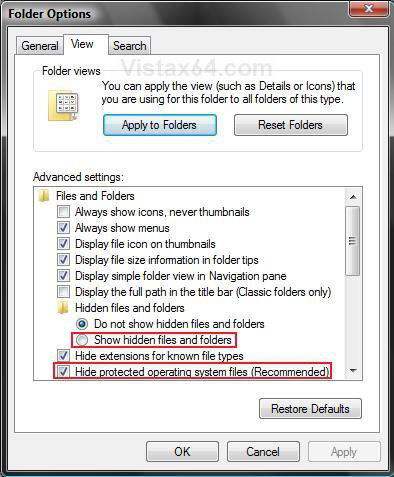
1. Open Folder Options.
2. To Show Only the Hidden System Files and Folders
NOTE: These are system files and folders, and any file or folder that you hidden manually.
A) Select (dot) Show hidden files and folders. (See screenshot below step 6)
B) Go to step 6.
3. To Hide All Hidden System Files and Folders
NOTE: These are the system files and folders, and any file or folder that you hidden manually.
A) Select (dot) Do not show hidden files and folders. (See screenshot below step 6)
B) Go to step 6.
4. To Show the Protected Operating System Files
WARNING: These should not be altered unless you know what you are doing. Doing so can result in having to do a reinstall of Vista.
A) Do step 2.
B) Uncheck the Hide protected operating system files (Recommended) box. (See screenshot below step 6)
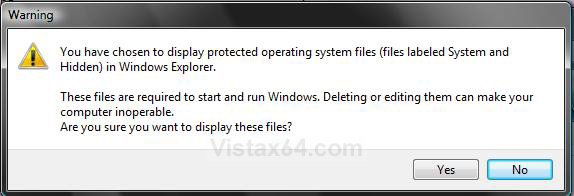
C) Click on Yes for the confirmation prompt. (See screenshot below)
5. To Hide Only the Protected Operating System Files
NOTE: For example, these include the desktop.ini files.
A) Check the Hide protected operating system files (Recommended) box. (See screenshot below step 6)
6. Click on OK to apply and close Folder Options window.
That's it,
Shawn
Related Tutorials
- How to Open and Change Folder Options in Vista
- How to Set and Unset the Read-only File and Folder Attribute in Vista
- How to Show and Change a File Name Extension in Vista
- How to Enable Simple File Sharing in Vista
- How to See the Folder Size in Vista
- How to Add or Remove the Hidden Files and Folders Option in Vista
- How to Copy the Full Path of a File or Folder in Vista
- How to Hide or Show File Names in Vista
- How to Hide a Folder or Shortcut Icon in Vista
- How to Add "Show/Hide Hidden Files" to Context Menu in Vista and Windows 7
Attachments
Last edited by a moderator:


