|
Welcome to Windows Vista Forums. Our forum is dedicated to helping you find solutions with any problems, errors or issues you are experiencing with Windows Vista. The Vista forum also covers news and updates and has an extensive Vista tutorial section that covers a wide range of tips and tricks.
| Vista Tutorial - Windows Mail - Messages Windows Mail - Messages
How to Backup and Restore Messages in Windows Mail
Published by Brink
09-07-2007
| | How to Backup and Restore Messages in Windows Mail Information | | To Backup your messages, you will use the Export option. To Restore your messages that you have already backed up, you will use the Import option. This will save a copy of your messages to a empty folder outside of Windows Mail that you can use for a backup. Windows Mail email messages have the .eml file extension. |  | NOTE | | The default hidden system folder location where Windows Mail store the messages at is: C:\users\(your user name)\AppData\Local\Microsoft\Windows Mail\Local Folders |  | RELATED LINKS: | OPTION ONE: |
|---|
| How to Export (Backup) Messages |
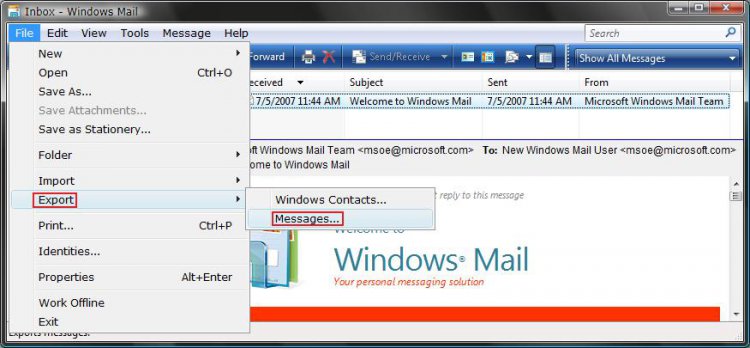
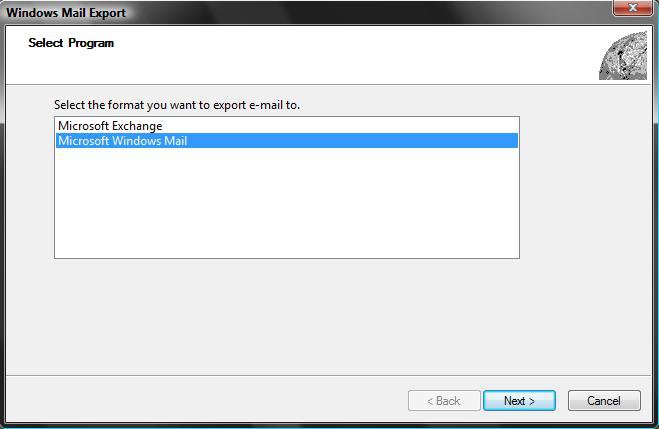
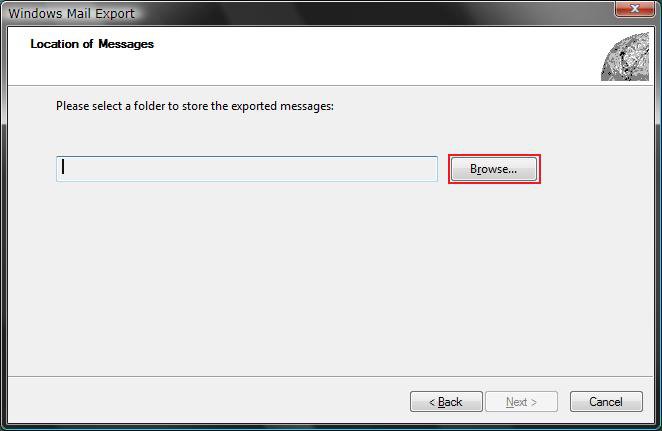
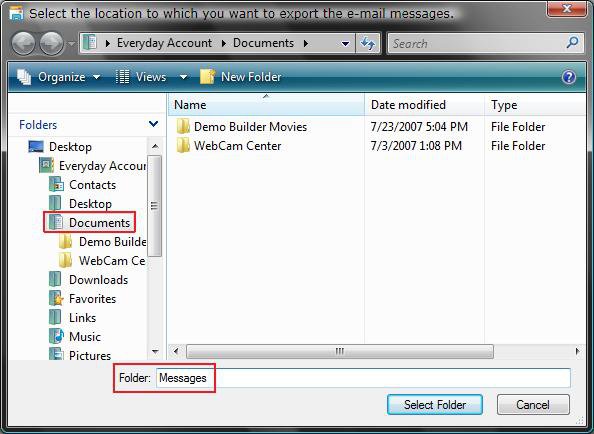
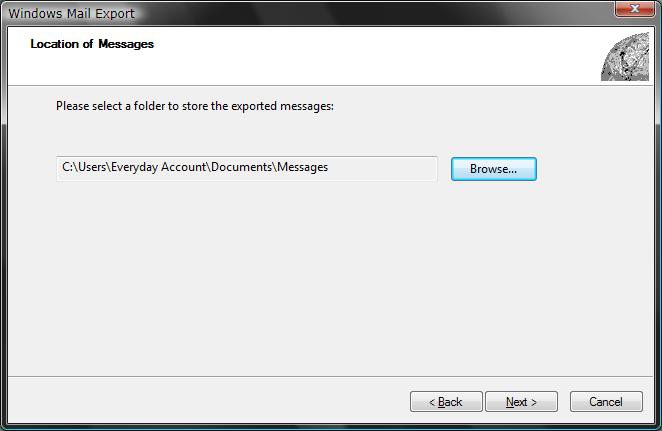
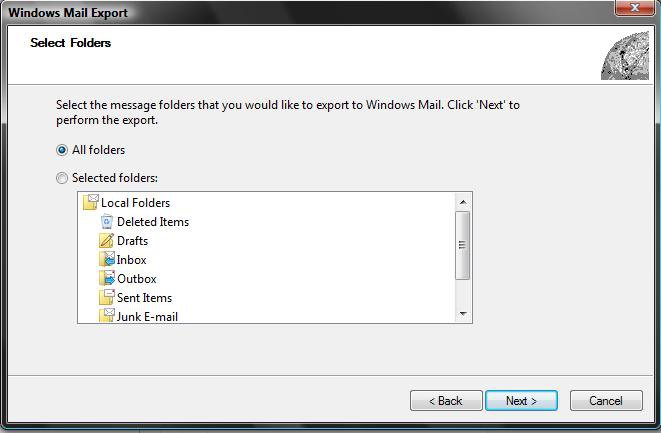
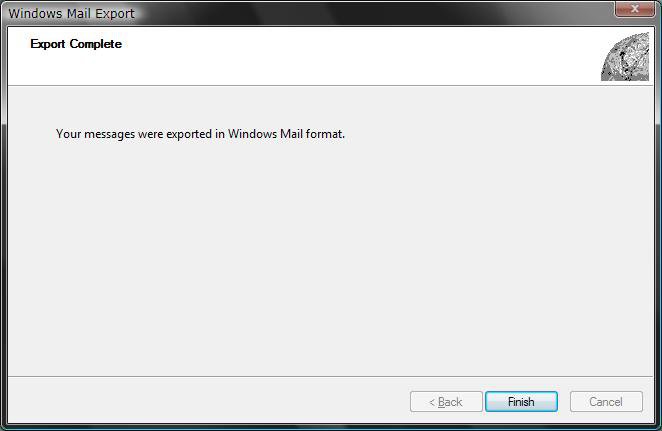
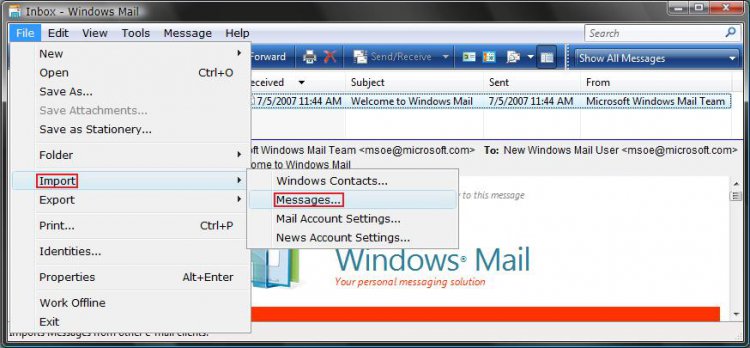
1. Create a new empty folder at the location you want to backup your Windows Mail messages to. NOTE: For example, create a new empty folder named Messages at C:\Users\(user name)\Documents. 2. Open Windows Mail. 3. Click on File and then Export and Messages. (See screenshot below) 4. Click on Microsoft Windows Mail and click Next. (See screenshot below) NOTE: If you want to export messages from Windows Mail to Microsoft Outlook or Microsoft Exchange, then click Microsoft Exchange instead. If Outlook is not open, select the profile that you want to receive the messages, and then click Ok. See: Microsoft Help and Support: KB196347 5. Click on Browse. (See screenshot below) WARNING: You will only be able to Export into a selected empty folder. 6. Navigate to the location of your empty new folder (step 1) and highlight the new folder, then click on Select Folder. (See screenshots below) NOTE: For example, go to C:\Users\(user name)\Documents and highlight the Messages folder. 7. Make sure the Export To location is correct and click on Next. (See screenshot below) 8. Select (dot) All folders and click on Next. (See screenshot below) NOTE: If you only want to back up a individual folder, then dot Selected folders and click on the folder you want to export. 9. Click on Finish. (See screenshot below) NOTE: Your messages have been Exported to the selected location from step 1 and 6 above. You can save this folder to something like a DVD or USB key to backup or use to transfer to another computer.
| OPTION TWO: |
|---|
| How to Import (Restore) Messages |
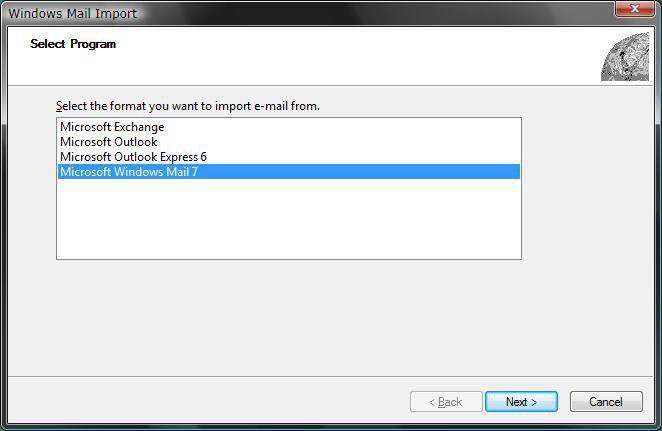
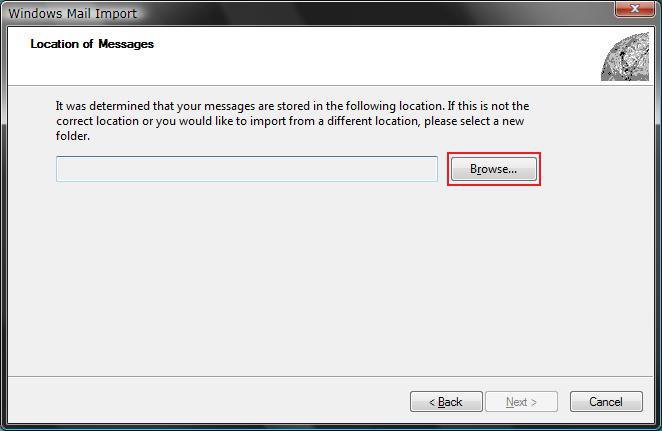
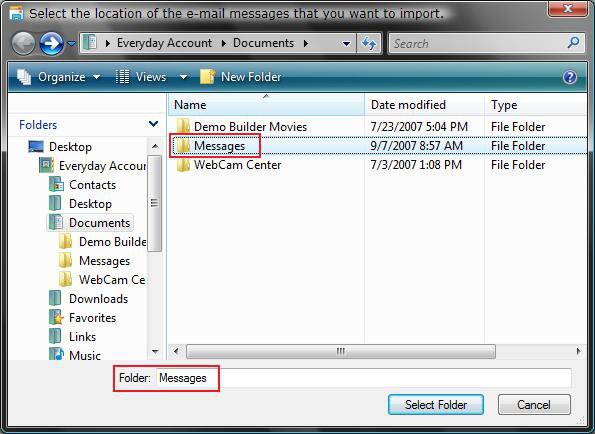
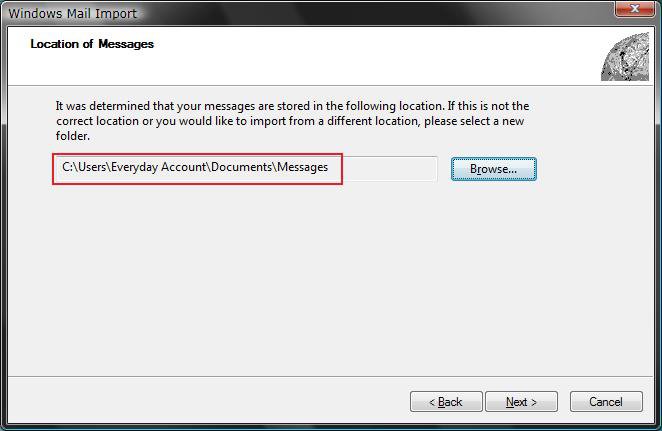
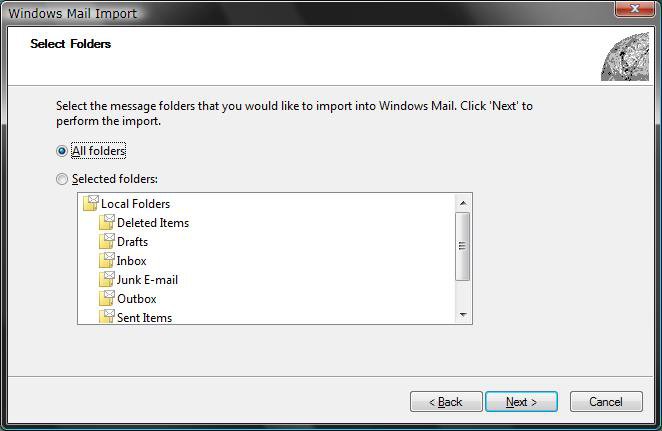
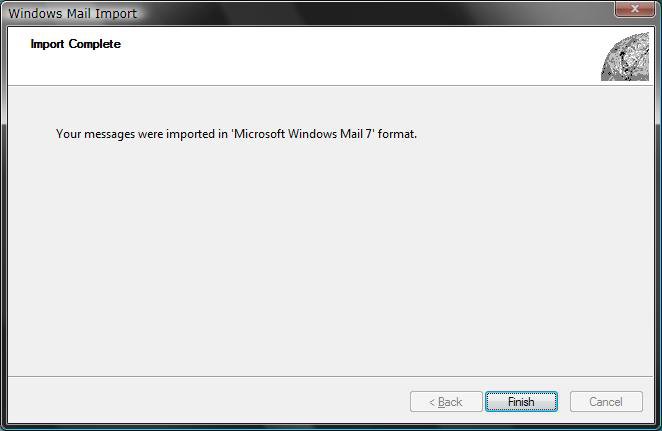
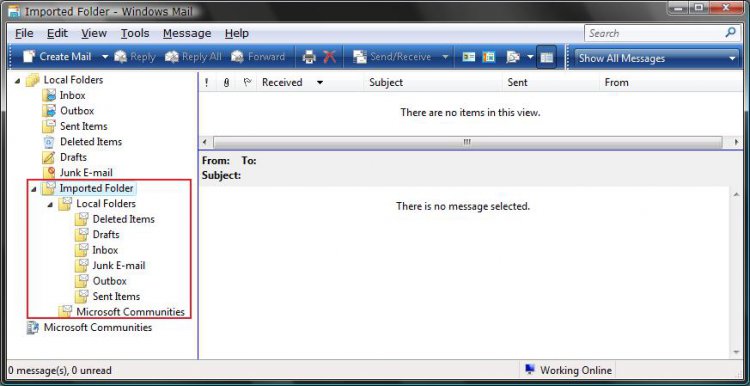
1. Open Windows Mail. 2. Click on File, Import, and Messages. (See screenshot below) 3. Click on Microsoft Windows Mail 7 and click on Next. (See screenshot below) NOTE: If you are importing from another format, then select the program that the messages are from instead. See: www.oehelp.com/backup.aspx#oe2wm 4. Click on Browse. (See screenshot below) 5. Navigate to the location of your backed up messages folder and only highlight the folder, then click on Select Folder. (See screenshots below) NOTE: For example, from OPTION ONE go to C:\Users\(user name)\Documents and highlight the Messages folder. 6. Make sure the Import From location is correct and click on Next. (See screenshot below) 7. Select (dot) All folders and click on Next. (See screenshot below) NOTE: If you only want to import a individual folder, then dot Selected folders and click on the folder you want to import. 8. Click on Finish. (See screenshot below) NOTE: Your messages have been Imported from the selected location from step 5 above.  9. Now just move the email messages from the Imported Folders to the mailbox folder you want them in. (See screenshot below) NOTE: For example, you can Drag and Drop or highlight the email messages and click Move to Folder. The folders can only be moved one at a time. 10. When done, you can delete these Imported Folders. NOTE: To delete, just right click on the imported folder and click Delete. If the imported folder(s) will not delete, then see the FIRST and SECOND section instructions here:How to Fix Most Problems with Vista's "Windows Mail"
That's it,
Shawn |  Published by | | | Administrator Join Date: Apr 2007 Location: Texas, USA
Posts: 23,752
Rep Power: 150 | |
 Tutorial Tools | | |
 Applies to | | All Vista Versions | | 64 Bit & 32 Bit | |
| | | | | |
09-10-2007
|
| | Member
Rep Power: 15
 | Re: Windows Mail - Messages When I did an import of messages saved in this manner (after a clean install of Ultimate), I noted that the messages in top level folders did not import; i.e. messages in the INBOX did not import but messages in sub-folders to INBOX did import. Drag-&-Drop time. BTW, since we no longer use a .DBX file to store messages, D&D is an easy, effective way to archive _individual_ messages or groups of messages without archiving the entire folder. I also noted that INBOX would readily rebuild its index while other folders did not. This led me to D&D to INBOX and use email rules to put the messages away. | My System Specs | |
09-10-2007
|
| | Administrator Vista x64 Ultimate SP2 Texas, USA | Re: Windows Mail - Messages Hi Tuellz,
Welcome to the forum.
That is strange. It should have imported them. Did you try to import just that one single folder (Inbox)?
Shawn | My System Specs | | System Manufacturer/Model Number Custom OS Vista x64 Ultimate SP2 CPU Core2 Quad Q9450 2.66GHz 12MB Motherboard Gigabyte X48-DQ6 Memory 8 GB (4x2) DDR2 PC2-8500 1066 MHz Patriot Extreme Graphics Card BFG GeForce 9600 GT OC 512MB Sound Card Realtek HD Audio ALC889A Integrated Chip Monitor(s) Displays 28" Hanns-G HG281DJB and 17" eMachines E17T4 Screen Resolution 28" 1920x1200 and 17" 1280x1024 Keyboard Logitech Cordless Desktop MX 5500 Revolution Mouse Logitech Cordless Desktop MX 5500 Revolution PSU Antec NeoPower 500 Watt Case Tagan El-Diablo Full Tower Cooling 250 mm Front, 360 mm Side, stock CPU, 120 mm SiLenX Rear Hard Drives 64GB Patriot SSD (v2)
750GB Samsung HDD HD753LJ SATA 32MB Internet Speed 3382 kb/s Download and 312 kb/s Upload Other Info Creative WebCam Instant
09-11-2007
|
| | Member
Rep Power: 15
 | Re: Windows Mail - Messages I exported "Local Folders" in one fell swoop and imported the same. Of course, all imported folders were placed in an "Imported" folder.At any rate, I'm fully restored now. Thanks | My System Specs | |
09-11-2007
|
| | Administrator Vista x64 Ultimate SP2 Texas, USA | Re: Windows Mail - Messages Your welcome Tuellz,
Welcome to the forum.
Yeah, It would be nice if it would just import them straight into the folder instead of a separate "Imported Folder". I suppose they designed that way so the user could pick and choose from there if they did not want all of them.
Shawn | My System Specs | | System Manufacturer/Model Number Custom OS Vista x64 Ultimate SP2 CPU Core2 Quad Q9450 2.66GHz 12MB Motherboard Gigabyte X48-DQ6 Memory 8 GB (4x2) DDR2 PC2-8500 1066 MHz Patriot Extreme Graphics Card BFG GeForce 9600 GT OC 512MB Sound Card Realtek HD Audio ALC889A Integrated Chip Monitor(s) Displays 28" Hanns-G HG281DJB and 17" eMachines E17T4 Screen Resolution 28" 1920x1200 and 17" 1280x1024 Keyboard Logitech Cordless Desktop MX 5500 Revolution Mouse Logitech Cordless Desktop MX 5500 Revolution PSU Antec NeoPower 500 Watt Case Tagan El-Diablo Full Tower Cooling 250 mm Front, 360 mm Side, stock CPU, 120 mm SiLenX Rear Hard Drives 64GB Patriot SSD (v2)
750GB Samsung HDD HD753LJ SATA 32MB Internet Speed 3382 kb/s Download and 312 kb/s Upload Other Info Creative WebCam Instant
11-15-2007
|
| | Newbie
Rep Power: 12
 | Re: Windows Mail - Messages Hey Brink, thanks for all this!
Your backup method here seems to export the mail to a new file -- however, you also point to backup which, instead, discusses backing up the C:\Users\{USER}\AppData\Local\Microsoft\Windows Mail\ folder.
I used to back up Outlook Express by backing up the correspoding folder -- but Windows Mail now stores each email as a separate file, and I have almost 100,000 -- is there a good way to manage this?
Thanks! -Scott | My System Specs | |
11-15-2007
|
| | Administrator Vista x64 Ultimate SP2 Texas, USA | Re: Windows Mail - Messages Hi Scott,
It is not a good ideal to store so many messages on Windows Mail. You can lose them if something happens to corrupt Windows Mail. Which is east to do.  Plus, it can slow Windows Mail down.
I would recommend that you create a new sub-folder under Local Folders (Right click and click New Folder), and put the messages that you want to store in it. You can then Export that folder (See NOTE under step 7) for storage or as a backup. Delete the contents of that folder in Windows Mail to save space. When you want the messages back, just Import them from that exported folder in storage or backup.
Shawn | My System Specs | | System Manufacturer/Model Number Custom OS Vista x64 Ultimate SP2 CPU Core2 Quad Q9450 2.66GHz 12MB Motherboard Gigabyte X48-DQ6 Memory 8 GB (4x2) DDR2 PC2-8500 1066 MHz Patriot Extreme Graphics Card BFG GeForce 9600 GT OC 512MB Sound Card Realtek HD Audio ALC889A Integrated Chip Monitor(s) Displays 28" Hanns-G HG281DJB and 17" eMachines E17T4 Screen Resolution 28" 1920x1200 and 17" 1280x1024 Keyboard Logitech Cordless Desktop MX 5500 Revolution Mouse Logitech Cordless Desktop MX 5500 Revolution PSU Antec NeoPower 500 Watt Case Tagan El-Diablo Full Tower Cooling 250 mm Front, 360 mm Side, stock CPU, 120 mm SiLenX Rear Hard Drives 64GB Patriot SSD (v2)
750GB Samsung HDD HD753LJ SATA 32MB Internet Speed 3382 kb/s Download and 312 kb/s Upload Other Info Creative WebCam Instant
12-21-2007
|
| | cragon
Rep Power: 13
 | Re: Windows Mail - Messages I've been reading about backup/reset/restore. I'm not sure I know why I should do this. Is it a regular maintenance function one should perform, or is it for a specific problem?
Bill | My System Specs | |
12-21-2007
|
| | Administrator Vista x64 Ultimate SP2 Texas, USA | Re: Windows Mail - Messages Hi Bill,
This is good to do if you save alot of messagesl. It is best to store (Export) the saved messages to be saved in different location instead of leaving it in Windows Mail. If Windows Mail got corrupted you could lose all the save messages. This way you can Restore them if it that happens. The Reset is to repair Windows Mail back to the default blank state if it got corrupted. If you are like me and do not save any messages, then this is not something you need to worry about it.
Hope this helps,
Shawn | My System Specs | | System Manufacturer/Model Number Custom OS Vista x64 Ultimate SP2 CPU Core2 Quad Q9450 2.66GHz 12MB Motherboard Gigabyte X48-DQ6 Memory 8 GB (4x2) DDR2 PC2-8500 1066 MHz Patriot Extreme Graphics Card BFG GeForce 9600 GT OC 512MB Sound Card Realtek HD Audio ALC889A Integrated Chip Monitor(s) Displays 28" Hanns-G HG281DJB and 17" eMachines E17T4 Screen Resolution 28" 1920x1200 and 17" 1280x1024 Keyboard Logitech Cordless Desktop MX 5500 Revolution Mouse Logitech Cordless Desktop MX 5500 Revolution PSU Antec NeoPower 500 Watt Case Tagan El-Diablo Full Tower Cooling 250 mm Front, 360 mm Side, stock CPU, 120 mm SiLenX Rear Hard Drives 64GB Patriot SSD (v2)
750GB Samsung HDD HD753LJ SATA 32MB Internet Speed 3382 kb/s Download and 312 kb/s Upload Other Info Creative WebCam Instant
12-21-2007
|
| | cragon
Rep Power: 13
 | Re: Windows Mail - Messages Thanks, makes sense. What would be considered "alot of messages" ?
Dinner calls. I'll look for the answer later.
Also, what about "Fix Vista" links listed on this forum? Should I?
Thanks for your help. | My System Specs | | | Tutorial Tools | | | | Display Modes | Linear Mode | Vista Forums is an independent web site and has not been authorized, sponsored, or otherwise approved by Microsoft Corporation. "Windows Vista", the Start Orb, and related materials are trademarks of Microsoft Corp. © Designer Media Ltd Tutorial powered by GARS 2.1.8m ©2005-2006
|