
How to Add Encrypt and Decrypt to the Context Menu in Vista
 Information
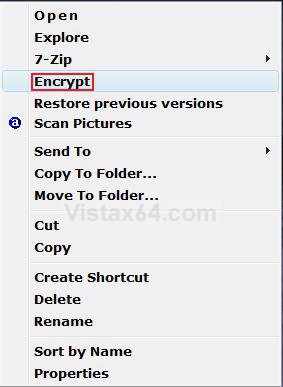
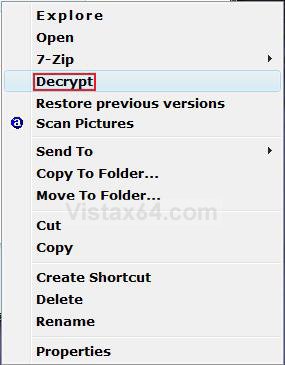
This will add Encrypt and Decrypt to the context menu (right click). It will allow you to encrypt or decrypt a file or folder by simply right clicking the item and selecting Encrypt or Decrypt. You will no longer have to go through the Advanced Properties of the file or folder to do it. The Encrypt feature is only available in the Vista Business, Ultimate, and Enterprise versions.
 Note
NoteIf the file or folder is not already encrypted, you will see Encrypt when you right click on the file or folder. If the file or folder is already encrypted, then you will see Decrypt when you right click on the file or folder.
 Warning
If you add encrypted files to a compressed (zipped) folder, the files will be unencrypted (decrypted) when extracted, which might result in unintentional disclosure of personal or sensitive information. For that reason, you should avoid compressing encrypted files. If you create a shortcut from the encrypted file, it will not be encrypted until you do it.
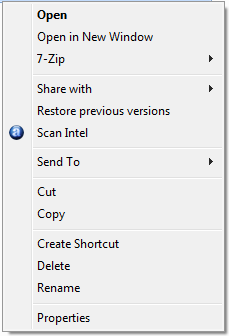
EXAMPLE: Context Menu after Adding Encrypt and Decrypt
NOTE: Only one will appear in the context menu at a time depending on if the file or folder is encrypted or not.
 OPTION ONE
1. To Add Encrypt and Decrypt
A) Click on the Download button below to download the file below.
Add_Encrypt-Decrypt.reg

B) Go to step 3.
2. To Remove Encrypt and Decrypt
A) Click on the Download button below to download the file below.
Remove_Encrypt-Decrypt.reg
3. Click on Save, and save the .reg file to the Desktop.
4. Right click on the downloaded .reg file and click on Merge.
5. Click on Run, Continue (UAC), Yes, and then OK when prompted.
6. You can now delete the .reg file (on Desktop) if you want to.
OPTION TWO 1. Open the Start Menu.
2. In the white line (Start Search) area, type regedit and press Enter.
3. Click on Continue button in the UAC prompt.
4. In regedit, go to: (See screenshot below step 5)
HKEY_CURRENT_USER\Software\Microsoft\Windows\CurrentVersion\Explorer\Advanced
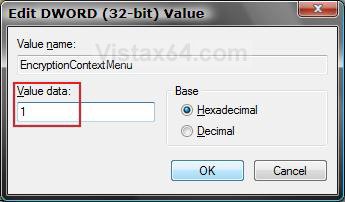
5. In the right pane, right click on a empty space and click on New and DWORD (32-bit) Value.
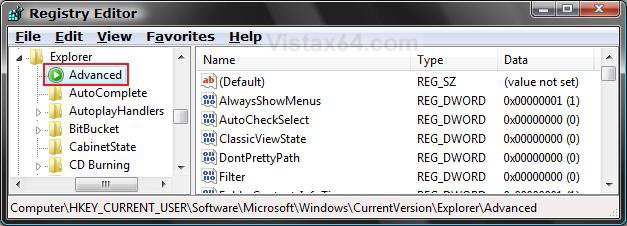
6. Type EncryptionContextMenu and press Enter. (See screenshot below)
7. Right click EncryptionContextMenu and click on Modify.
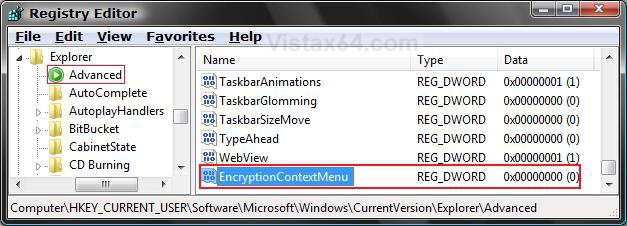
8. To Add Encrypt and Decrypt
A) Type 1 and click on OK. (See screenshot below)
B) Go to step 10.
9. To Remove Encrypt and Decrypt
A) Type 0 (number zero) and click on OK.
10. Close regedit.
That's it,Shawn
Related Tutorials
- How to Expand the Context (Shortcuts) Menu in Vista
- How to Customize the Context Menu for the Start Menu in Vista
- How to Customize the Send To Context Menu in Vista
- How to Customize the Recycle Bin Context Menu in Vista
- How to Add COPY TO FOLDER and MOVE TO FOLDER to the Context Menu in Vista
- How to Encrypt or Decrypt a Folder or File in Vista
- How to Add and Remove a New Menu Item in Vista
- How to Add Take Ownership to the Context Menu in Vista
- How to Restore the Search Context Menu Item after Installing the Vista SP1
- How to Add Flip 3D to the Context Menu in Vista
- How to Restore or Remove New from the Context Menu in Vista
- How to Enable or Disable the Context Menu in Vista
- How to Remove or Show Drives in the Vista and Windows 7 "Send To" Context Menu
- How to Add View and Print File Directory to the Context Menu in Vista
- How to Add or Remove Copy as Path from the Vista Context Menu
- How to Add or Remove Send To from the Vista Context Menu
- How to Add or Remove Turn Aero On or Off from the Vista Context Menu
- How to Add System Properties to Computer Context Menu in Vista
- How to Restore or Remove "Restore Previous Versions" from the Vista Context Menu
- How to Add Empty Folder and Subfolders to the Vista Context Menu
- How to Create a Encrypting File System Manager Shortcut
- How to Find and See a List of All Encrypted Files on All Local Hard Drives
Attachments
Last edited: